


A WordPress update service is “managed maintenance,” provided by experts, not just a robot. For most site owners, updates feel like a gamble because if you skip them, you’re sitting on security holes, and if you run them, you risk breaking something that was working perfectly fine five minutes ago. So, which is worse? Honestly, neither has to be true if you approach updates the right way. That’s exactly what a proper WordPress update service is built for, not a tool that blindly clicks buttons, but a process that treats your site like the business asset it actually is. At WPAegis, we’ve seen firsthand how a few “small” plugin updates, left unchecked, can snowball into a broken checkout page or a site that’s down right when traffic peaks.
In this guide, we’re breaking down what a WordPress update service is, why regular updates matter more than most people realize, and how a structured process like backups, staging, controlled rollouts, and proper verification can be the difference between a five-minute update and a five-hour emergency.
Table of Contents:
- Improve Site Security and Performance with WordPress Update Service
- The Importance of Regular Updates
- Why is it Essential to update WordPress regularly?
- How Often Should You Update?
- How a WordPress Update Service Works
- Inventory and baseline
- Backup (and verify it’s restorable)
- Staging test (when the site is complex)
- Controlled rollout to production
- Post-update verification
- Monitoring and rollback plan
- Benefits of Using a WordPress Update Service
- Improved security (with fewer gaps)
- Better performance through a healthier stack
- Reduced downtime and fewer emergency fixes
- Time savings (but also decision savings)
- If You Don’t Update WordPress:
- Can WordPress Update Automatically?
- Frequently Asked Questions
The Importance of Regular Updates
Skipping updates doesn’t keep your site “stable” because updates strengthen your WordPress security.
Why is it Essential to update WordPress regularly?
1) Security patches aren’t optional: When a vulnerability is found, the fix lands in an update. If you don’t install the update, you’re leaving a known hole open. In practice, that means automated scans will find you.
2) Performance improvements show up quietly: Not every update is a “faster site,” but many include query optimizations, improved block editor performance, better compatibility with modern PHP, or fixes that reduce errors. The performance gains are often indirect: fewer fatal errors, fewer plugin conflicts, less database weirdness.
3) Compatibility is a ticking clock: Plugins and themes keep evolving. Eventually, one of them will require a minimum WordPress or PHP version. If you’re behind, you get stuck: you can’t update the plugin without updating core, and you can’t update core without dealing with whatever technical debt has piled up.
4) You reduce the “blast radius” of change: This is underrated. If you update regularly, each update is small. If you wait six months, you’re doing a bulk migration with no plan.
How Often Should You Update?
My practical schedule (the boring, reliable one) looks like this:
- WordPress core security releases: ASAP, same day if possible.
- Major core releases: within 1–3 weeks, after checking plugin/theme compatibility (and ideally testing on staging).
- Plugins/themes: weekly review for business-critical sites, or at least monthly for brochure sites.
If your site has e-commerce, memberships, or bookings, weekly is safer. If it’s a simple marketing site with a handful of reputable plugins, monthly can be fine, as long as you’re on top of security releases.
How a WordPress Update Service Works
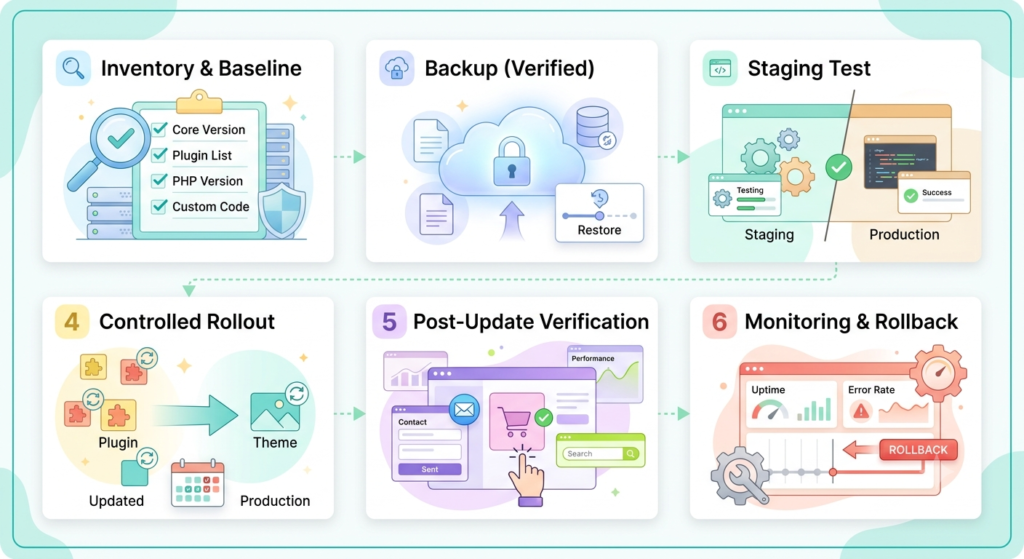
A decent update service isn’t magic, but it’s a repeatable process with guardrails. Here’s the workflow I’ve used (and what I expect from any service I’d trust).
1: Inventory and baseline
Before touching updates, you need to know what you’re running.
- Current WP core version
- Plugin list + versions (and which ones are must-have vs nice-to-have)
- Theme + child theme setup
- PHP version and hosting environment
- Any custom code snippets (functions.php hacks, mu-plugins, bespoke integrations)
This is where update services vary. The cheap ones skip this and just “apply updates.” The better ones document it and spot obvious risks (abandoned plugins, duplicated functionality, weird licensing).
2: Backup (and verify it’s restorable)
Backups are useless if they can’t be restored quickly.
A solid service will:
- Take a file backup and a database backup right before changes
- Store it off-server (not just on the same hosting account)
- Know how long restores take (minutes? hours?)
I’ve seen the worst-case version of this: an update breaks a site, the owner clicks “restore,” and the backup is corrupted, or it restores files but not the database. Now you’ve got downtime and no way back.
3: Staging test (when the site is complex)
For anything beyond a simple site, updates should be tested on staging.
- Clone production to staging
- Run updates there first
- Click through critical paths
- Check error logs
This catches the classic problems: a plugin update that conflicts with your theme, a PHP warning that turns into a fatal error, a checkout flow that stops redirecting correctly.
4: Controlled rollout to production
Updates get applied with some strategy:
- Update core (if needed)
- Update plugins in sensible order (framework plugins before add-ons)
- Update theme last (especially if there’s custom CSS/JS hanging off it)
A good service avoids “update everything at once” for business-critical sites. Bulk updates are fast, but when something breaks, you don’t know which change caused it.
5: Post-update verification
This is the part people forget.
Minimum checks I run:
- Home page loads (logged out)
- A top landing page loads
- Contact form sends
- Search works (if the site has it)
- If ecommerce: add to cart, checkout, payment gateway redirect, order confirmation
If you’re using caching/CDN, you may also need:
- Cache purge
- CDN cache purge (selective)
6: Monitoring and rollback plan
Even if the site looks fine, issues can show up later, especially with caching.
A service should monitor:
- Uptime
- PHP fatal errors
- Plugin auto-update failures
And if something’s wrong, rollback should be quick and boring.
Benefits of Using a WordPress Update Service
The benefits aren’t just “less work.” The real win is less risk per update.
1) Improved security (with fewer gaps)
Regular patching closes known vulnerabilities. That part is obvious.
What’s less obvious: a service reduces the time you spend in the danger zone-, those weeks/months when updates are available, but you haven’t applied them yet.
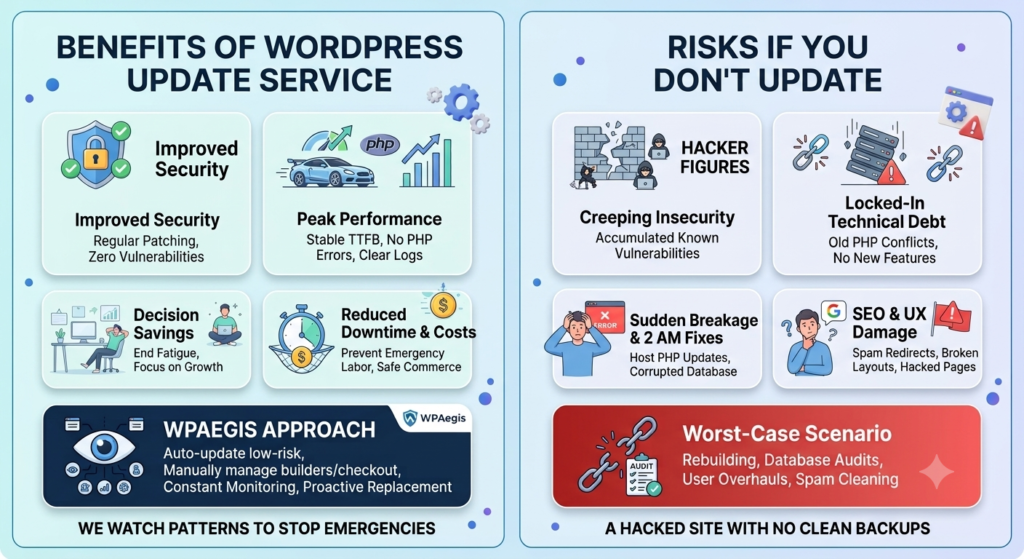
2) Better performance through a healthier stack
Outdated components often drag performance down indirectly:
- Extra PHP warnings filling logs
- inefficient queries from old plugin versions
- Caching plugins falling out of sync with newer WordPress behavior
One client story: a content-heavy site I worked on had random slowdowns that looked like “bad hosting.” It wasn’t. They were running an older caching plugin version that didn’t play nicely with their newer PHP setup. Updating (plus reconfiguring the cache settings) stabilized TTFB and cut support tickets from “site is slow again” to basically zero.
3) Reduced downtime and fewer emergency fixes
The hidden cost of DIY updates is emergency labor.
- The update you do at 9 pm becomes a 2 am debugging session.
- Or worse: you don’t notice the checkout is broken until customers email you.
A service that does backups + staged testing prevents most of those incidents and catches the rest quickly.
4) Time savings (but also decision savings)
Yes, you save time clicking buttons. But the bigger savings are not having to constantly decide:
- “Is this update safe?”
- “Should I wait?”
- “What if it breaks?”
Decision fatigue is real because offloading maintenance frees you to work on content, SEO, product pages, and conversion stuff, the things that actually grow the site.
Common mistakes I see (and what I do instead)
- Mistake: Turning on auto-updates for everything and walking away.
- What I do: Auto-update low-risk plugins, manually manage high-risk ones (checkout, builders, security, caching), and always keep backups.
- Mistake: Updating directly on production with no rollback.
- What I do: Staging first when the site is complex, or at least a pre-update backup + quick smoke test.
- Mistake: Keeping abandoned plugins because “it still works.”
- What I do: Replace them proactively. Abandoned plugins are where ugly security stories start.
At WPAegis, this is the exact reasoning behind how we approach maintenance. We’re not just clicking buttons; we’re watching for the patterns that lead to bigger problems down the line: a plugin that keeps failing updates, a theme that’s quietly overriding core functionality, a hosting environment that’s falling behind on PHP versions. Catching those early is what separates routine maintenance from a 2 a.m. emergency call.
If You Don’t Update WordPress:
Usually, nothing happens until it does.
What I’ve seen in the wild:
- Slow creep into insecurity: old versions accumulate known vulnerabilities.
- Sudden breakage: a host upgrades PHP, and an old plugin fails.
- Locked-in technical debt: you can’t add new features because everything is too outdated to change safely.
- SEO and UX damage: downtime, hacked pages, spammy redirects, broken layouts; Google and users both notice.
One of the most painful scenarios is a hacked site with no clean backups. At that point, “updating WordPress” isn’t the job anymore; you’re rebuilding, auditing users, replacing keys, and cleaning a database that might have injected spam everywhere.
Can WordPress Update Automatically?
Yes, WordPress can auto-update core (especially minor/security releases), and you can enable auto-updates for plugins/themes.
But full automation has tradeoffs.
- Auto-updates are fine for low-risk plugins on simple sites.
- Auto-updates are risky for complex sites where one plugin controls layouts, caching, membership access, or payment flows.
The safest middle ground I’ve landed on is:
- Auto-update WordPress minor/security releases.
- Auto-update a small set of “boring” plugins.
- Use a service (or a disciplined routine) for everything else: staging tests, backups, and real verification.
If you’ve ever had a plugin update break a header, wipe out a template, or mess with a checkout button, you already understand why. If your WordPress site matters, updates can’t be “when I remember.” They need a system.
Frequently Asked Questions:
The big ones: updates are unnecessary, everything updates automatically, and any update is likely to break your site. In practice, most “breakage” traces back to outdated plugins/themes, no staging, and no rollback plan.
Usually a mix of performance complaints, security anxiety, and the appeal of simpler hosted builders. In my experience, a lot of “WordPress is slow/insecure” stories are really “this site has 40 plugins, and nobody maintains it.”
Go to your WordPress admin dashboard → Updates. From there, you can update:
Core WordPress
Plugins
Themes
My practical advice: don’t start there. Start with a backup, then (ideally) test on staging, then update in smaller batches so you can pinpoint conflicts.
Don’t thrash. Do this instead:
Put the site in maintenance mode (if it’s publicly broken).
Restore from the most recent backup/snapshot (SiteLock also recommends this as a primary step).
Re-apply updates on staging in smaller batches to identify the conflicting plugin/theme.
Replace the abandoned component rather than fighting it forever.

Leave a Reply