


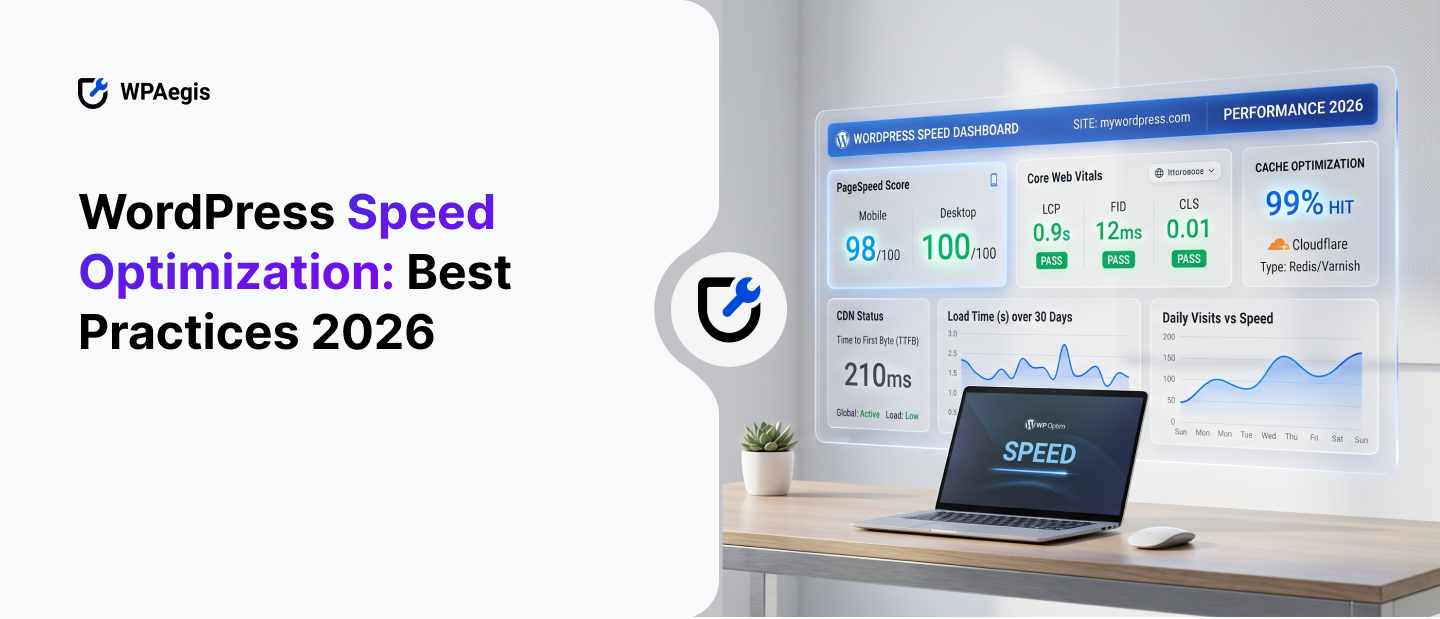
WordPress speed optimization is the process of reducing the time your site takes to become usable, especially on the first visit, on mobile, and on real-world networks. That last part matters. “Fast on my laptop” isn’t the goal. Instead, the goal is this: a cold visitor hits your homepage from a phone on mediocre 4G, and the page becomes readable quickly, interactive quickly, and doesn’t jump around like a carnival ride while it loads.
A fast WordPress site is generally just a site where:
- The server responds quickly.
- Pages are cached intelligently.
- Assets are compressed and not excessive.
- The browser isn’t forced to do unnecessary work.
Performance Is a Product Feature
In 2026, increasing Wordspeed isn’t merely “technical hygiene.” It’s a core part of UX. It influences:
- how premium your brand feels,
- how much Google trusts your pages,
- how expensive your ads become, because quality signals affect cost-per-click,
- How many support tickets do you get, since “site is broken” often means “site is slow”
If you treat speed like a product feature, you’ll do the boring-but-effective work: fewer plugins, simpler pages, less JavaScript, smarter caching, and regular monitoring.
Why WordPress Speed Optimization Matters
Speed matters because people don’t read explanations for why a page is loading; they leave.
Google’s research is blunt: 53% of mobile users abandon a site if it takes longer than three seconds to load. That’s not a minor UX concern. That’s half your mobile visitors deciding you’re not worth waiting for, so it is crucial to increase WordPress speed.
And speed isn’t just about “visitors,” but it’s about outcomes, leads, sales, signups, ad revenue, whatever your WordPress site exists to produce. Case studies consistently show performance work paying off. One WordPress example reports conversion improvements as great as 74% after targeted speed work.
Speed Is an SEO Multiplier
People oversimplify this as “Google ranks fast sites higher.” The reality, however, is messier than that:
- Faster pages reduce bounce rate.
- Lower bounce combined with better engagement tends to correlate with better outcomes overall.
- Better outcomes usually mean more links, more brand searches, and more returning visitors.
That’s the compounding effect. Even if speed were only a small direct ranking factor- and it’s not irrelevant, but it’s not the whole game; the indirect effect of better user experience is significant.
Speed Is Also About Trust
Here’s a pattern I’ve seen repeatedly on service business sites:
- The homepage takes 6–8 seconds on mobile.
- People still click around, but they don’t fill out the contact form.
- Calls are lower than expected.
Performance is part of perceived credibility, and that matters whether or not it shows up directly in your analytics.
Where Speed Hits Hardest (and Surprises People)
- Mobile landing pages from ads: You pay for the click, then lose the visitor to load time before the page even renders.
- E-commerce category pages: Filters, product images, and scripts combine to make these pages heavy fast.
- Blog posts with embedded everything: Tweets, YouTube videos, Instagram posts, and five affiliate widgets on a single page.
- International visitors: If you’re only fast in one region, you’re not actually fast.
A Simple “Speed Math” Exercise I Use with Clients
If you get 50,000 visits per month and half is mobile traffic, and 53% bounce when load time crosses three seconds, that’s not just “a few people.” That’s potentially thousands of sessions you never get the chance to convert.
Do the math for your own funnel, and it’ll stop feeling like a technical vanity project.
Best Practices for WordPress Speed Optimization in 2026
These are the practices I’d stand behind in 2026 because they’re durable. They don’t rely on gimmicks, and they work consistently across themes, hosts, and most WordPress setups.
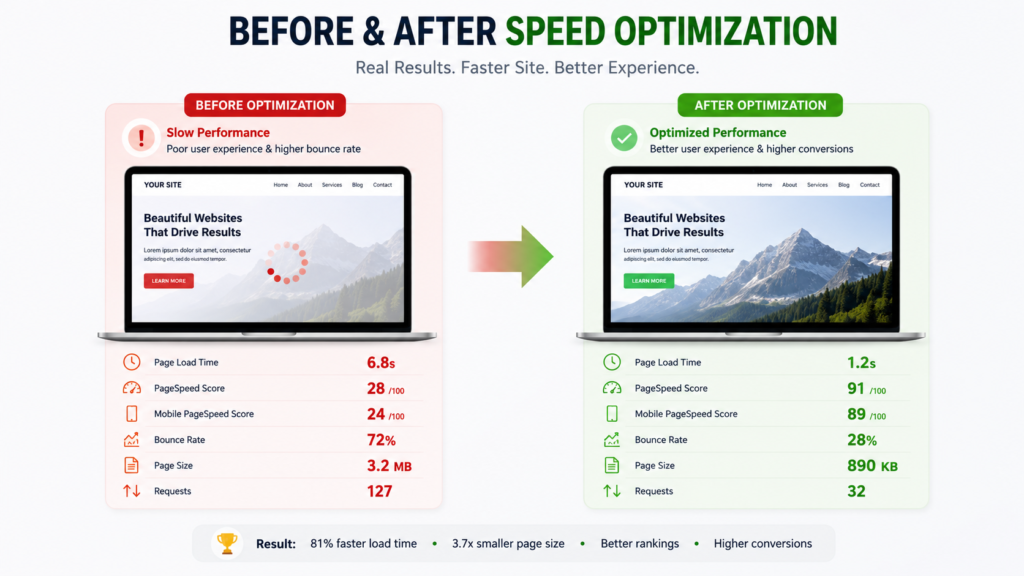
1) Start with Hosting That Isn’t Fighting You
If your host is underpowered, every other effort to improve WordPress site speed becomes fragile. You’ll cache harder, minify more aggressively, and still hit strange, unexplained slow spikes under load.
What I look for:
- Enough CPU and RAM for your traffic patterns, including sudden spikes.
- Modern PHP with OPcache enabled by default.
- A host that doesn’t throttle CPU under sustained traffic.
- Server-level caching options, or at least compatibility with full-page caching plugins.
Trade-off: Upgrading hosting costs money, but it often saves time and prevents mysterious slowdowns. If you’re spending hours squeezing milliseconds out of a site on bargain hosting, you’re paying in the most expensive currency there is, your own time.
2) Use Caching, But Use It Like an Adult
Caching remains the single biggest lever to increase WordPress speed for most sites. Without it, every page visit puts unnecessary load on your database and server.
Full-page caching
This is the most impactful option: serving a static HTML version of a page so WordPress, PHP, and MySQL don’t have to run for every single incoming request.
- Great for: blogs, marketing sites, documentation, and most landing pages.
- Needs careful handling for: ecommerce carts, checkout pages, account pages, and personalized content.
Plugins like W3 Total Cache or WP Super Cache can help, but the plugin is not the strategy. The strategy is:
- Cache pages that can reasonably be cached.
- Exclude pages that must remain dynamic.
- Warm the cache ahead of traffic spikes.
Object caching
Object caching adds complexity, but misconfigurations can cause unexpected, hard-to-trace issues. If you’re not comfortable configuring it yourself, keep it simple: focus on full-page caching and asset optimization first, then layer in object caching once those are stable.
3) Optimize Images Like You Mean It
Images are the most common source of payload bloat, by a considerable margin. To genuinely improve WordPress speed, this is usually the first and most impactful place to start.
What I do in practice:
- Resize images to the actual display size, or slightly larger for retina screens. Don’t upload 5,000-pixel-wide photos to a 900-pixel container.
- Compress using a reliable tool like Smush or ShortPixel.
- Use modern formats where practical: WebP or AVIF, but don’t break older edge cases in the process.
- Lazy-load below the fold only. Not the hero image, not the logo.
4) Control Your CSS and JavaScript (Don’t Just Minify)
Minifying helps, but it’s not the main win. The main win is not loading unnecessary assets in the first place. This is, in fact, one of the most straightforward ways to improve page speed in WordPress without touching anything complex.
What to look for:
- Does your slider load on pages that don’t have sliders?
- Does WooCommerce load scripts on blog posts?
- Does your page builder inject large CSS and JS bundles globally on every page?
Tools like Autoptimize can help, but proceed carefully. Combining and minifying too aggressively breaks scripts. Deferring everything makes pages interactive too late.
5) Use a CDN When It Makes Sense
A CDN can reduce latency by serving assets from servers closer to the visitor. It’s particularly useful if:
- You have an international audience,
- You serve lots of static files: images, CSS, JavaScript,
- Your origin server sits in one region, but traffic comes from everywhere.
CDNs add another layer to debug. Cache invalidation becomes a real consideration. However, when configured properly, the performance benefit is consistently worth the added complexity.
6) Keep Themes/Plugins Updated
Updates matter for security, of course. However, they also matter significantly for performance. Plugin count isn’t the whole story, but the correlation is hard to ignore. The worst offenders are typically:
- “all-in-one” visual builders loading their full asset stack on every page,
- analytics and marketing plugins that inject multiple separate scripts, poorly coded add-ons that hammer the database on every single request.
7) Make Performance Part of Content Publishing
This one is underrated. If your editors can upload any image size, embed any script, and stack twelve widget blocks on a page, your speed improvements will slowly unravel over weeks.
I set simple ground rules:
- Maximum image upload width.
- No autoplay video.
- Limit embeds per post.
- A short pre-publish checklist.
If you don’t build this into your publishing workflow, you’ll be asking why the site is slow again in three months, and the answer will be ten small decisions nobody flagged at the time.
Don’t Want to Manage All of This Yourself?
That’s exactly the problem WPAegis was built to solve. As a dedicated provider of WordPress maintenance services, WPAegis handles speed optimization, caching configuration, image optimization, plugin cleanup, Core Web Vitals fixes, and server-level performance tuning, all under one managed plan.
Whether you need ongoing WordPress maintenance and support or a targeted performance overhaul, we offer solutions designed around your site’s specific setup, not a generic checklist.
Request a free audit at WPAegis and get a clear, honest picture of exactly what’s slowing your site down.
Essential Tools for Speed Testing and Optimization
You can’t fix what you don’t measure. However, you also can’t worship a single score and call it done.
I use tools in two categories:
- Lab tools — repeatable tests run under controlled conditions
- Field tools — real-user data, when available
1) Google PageSpeed Insights (PSI)
This is the tool most people start with, and it’s genuinely useful, provided you read it correctly. It delivers performance suggestions, points out common problems like render-blocking resources and oversized images, and guides you toward user-centric metrics that actually matter.
Use it here: Google PageSpeed Insights
How I use PSI in practice:
- I run it before making changes and save the report.
- I focus on actionable opportunities: images, unused JavaScript, and font loading behavior.
- I don’t chase a perfect 100 if doing so requires hacks that risk breaking the site.
2) GTmetrix
GTmetrix is excellent for a detailed “what is actually loading?” breakdown.
What it’s good at:
- Waterfall charts that show you precisely what’s slowing the page down.
- Spotting third-party script delays you might otherwise miss entirely.
- Verify that caching headers are set correctly across your key pages.
3) Pingdom Tools
Pingdom is useful for quick checks and ongoing monitoring over time.
How I like to use it:
- Benchmark key pages weekly.
- Spot trend changes after a new plugin install, a theme update, or a new marketing tag is added.
4) Your Browser (DevTools) Is Still the Best Truth Serum
If you’re even slightly technical, Chrome DevTools, specifically the Network tab and Performance tab, will show you things that scoring tools simply can’t:
- What’s blocking the main thread?
- Which scripts are doing heavy CPU work at page load?
- layout shifts happen as the page renders,
- Long tasks that stall interactivity.
This is where you’ll discover that your “simple” chat widget is loading 2 MB of JavaScript and running significant CPU work on every single page load.
5) A Step-by-Step Testing Workflow
Here’s a repeatable process that doesn’t consume your entire day:
- Pick three representative URLs: the homepage, a typical post or page, and your heaviest money page: product, category, or landing page.
- Run PSI for both mobile and desktop. Record the key issues before touching anything.
- Run GTmetrix and save the waterfall report.
- Open DevTools and do one hard reload with cache fully disabled. Note the largest files and slowest domains.
- Make one change at a time: a plugin setting, a batch image optimization, a CDN configuration.
- Retest the same URLs after each change.
Common Mistakes to Avoid in WordPress Speed Optimization
Most speed failures aren’t the result of a lack of effort. Instead, they come from effort spent in the wrong place, or from over-optimizing until something breaks.
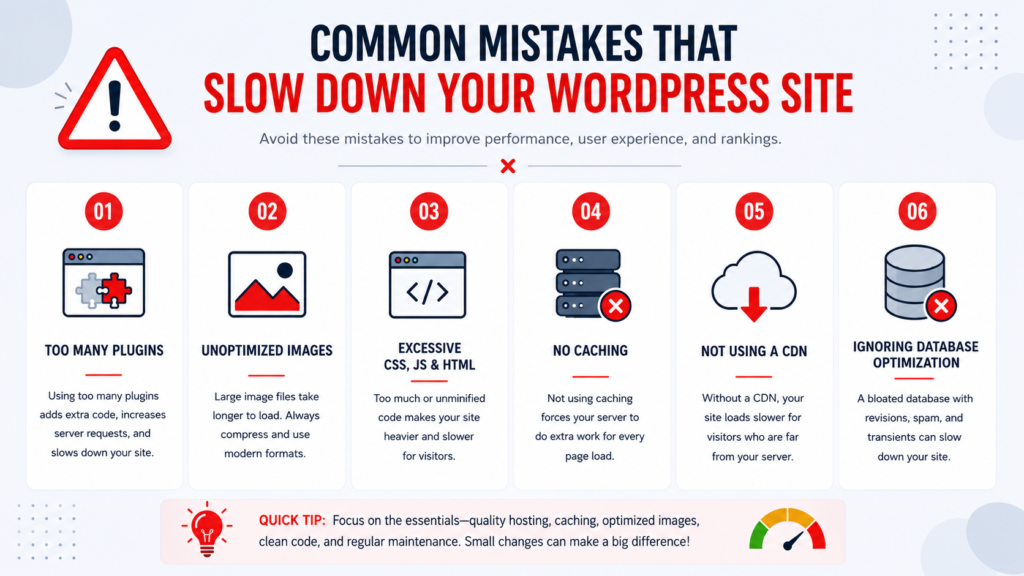
1. Installing Multiple Caching/Performance Plugins That Overlap
What typically happens:
- Plugin A minifies JavaScript.
- Plugin B also minifies JavaScript.
- Plugin C adds a full cache layer on top.
- As a result, you have conflicting rules and unpredictable breakage across different browsers and devices.
- Optimizing the Homepage and Ignoring the Pages That Make Money
If you run an e-commerce store or a lead-generation site, the priorities are clear:
- landing pages receiving paid traffic,
- pricing pages,
- product and category pages,
- Checkout and contact forms.
- Chasing a Score Instead of Fixing User Experience
You can absolutely improve a score while making the experience worse:
- deferring critical JavaScript that navigation depends on,
- lazy-loading above-the-fold images, which produces a blank hero section on load,
- Loading fonts is late, so the page flashes and shifts noticeably on arrival.
- Ignoring Third-Party Scripts
Third-party scripts are where good performance work frequently goes to die. Common culprits include:
- chat widgets,
- heatmap and session-recording tools,
- ad tags,
- Multiple analytics libraries loaded separately; Sociall embeds on high-traffic pages.
- Not Excluding Dynamic Pages from Cache
If you incorrectly cache logged-in user pages or cart and checkout pages, you can cause:
- the wrong user’s content being shown to someone else,
- stale cart data persisting between sessions,
- Broken session handling that only surfaces intermittently.
- Leaving Giant Images in the Media Library Forever
Even after fixing images on current pages, the media library often remains a junk drawer of oversized, uncompressed files. I recommend:
- setting clear image upload guidelines for your team,
- compressing images at the point of upload,
- periodically auditing your heaviest pages and the media they pull in.
Struggling to Keep Up with All of This?
WPAegis provides fully managed WordPress maintenance and support that covers exactly the problem areas described in this guide. With plans starting at $62/month, WPAegis WordPress maintenance solutions are built for businesses that simply can’t afford to let performance slip between updates. You retain full control of your site while their experts handle everything that would otherwise consume your time and attention.
Compare plans at WPAegis.com and find the right level of care for your site’s needs.
How to Optimize Your WordPress Speed in 5 Steps
If you want the fast checklist to increase page speed in WordPress, this is the sequence that consistently delivers the biggest gains without breaking anything in the process.
Step-by-Step Breakdown
- Baseline (30 minutes)
- Run PSI on three URLs, mobile first.
- Run GTmetrix and save the waterfall reports.
- Note your biggest offenders: image size, JavaScript bloat, third-party scripts, and slow TTFB.
- Cache (1–2 hours)
- Install and configure one caching plugin.
- Verify that cached HTML is being served to logged-out visitors.
- Set exclusions: admin dashboard, login page, cart, checkout, and account pages.
- Purge and retest before moving on.
- Images (2–4 hours, depending on site size)
- Batch-compress all existing media files.
- Fix hero images manually first; these are the ones that damage the first paint most significantly.
- Confirm that lazy-load is not being applied to above-the-fold images.
- CSS/JS Pruning (2–6 hours)
- Disable unused features in your theme or page builder settings.
- Turn off plugin assets on pages that don’t use them; many plugins load globally by default.
- Only after completing those steps: minify, combine if necessary, and defer.
- CDN and Maintenance (1–3 hours)
- Put assets behind a CDN.
- Validate cache headers, compression settings, and the absence of mixed-content issues.
- Schedule monthly performance checks, especially after major plugin or theme updates.
This approach is boring and reliable. It avoids the common trap of flipping every optimization toggle and hoping the site still functions afterward.
FAQs:
Focus on the highest-impact levers first:
Full-page caching for anonymous visitors.
Image optimization: resize and compress everything.
Remove unnecessary plugins and heavy features you’re not actively using.
Trim third-party scripts wherever possible.
Use a CDN if you serve a lot of static assets or attract international traffic.
If you do nothing else, fix images and caching first. That combination alone often transforms how a site feels to real visitors.
Because it improves user experience, and user experience affects everything that matters in SEO:
People bounce less frequently.
Pages get read, shared, and linked to more naturally over time.
Search engines observe stronger engagement signals in the data.
The ones I keep seeing repeatedly while improving WordPress site speed:
Stacking multiple caching and minification plugins simultaneously.
Ignoring third-party scripts that nobody wants to question or remove.
Optimizing only the homepage while ignoring revenue-driving pages.
Lazy-loading above-the-fold images.
Caching pages that should never be cached: cart, checkout, and account pages.
Chasing a benchmark score while breaking core functionality in the process.
At minimum:
Monthly for key pages.
After major changes, theme updates, new plugins, and new marketing tags.
Before and after campaigns, if you’re driving paid traffic to specific landing pages.
Performance regressions are easiest to address when caught early, before six “small” changes pile up into a site that’s noticeably slow and nobody can explain why.

Leave a Reply