


Automated daily backups, off-site storage, full-site copies (files plus database), restoration tests, and at least 30 days of retention are the non-negotiable pillars of a reliable WordPress backup strategy. Skip one, and you risk turning a minor issue into a full-blown disaster without warning.
Table of Contents
- The Day Everything Disappeared (Real-World Scenario)
- Introduction: Why Daily Backups Are Non-Negotiable
- Why WordPress Sites Are Always at Risk
- What a “Good” WordPress Backup Actually Looks Like
4.1 Full-Site Backups (Files + Database)
4.2 Backup Frequency: Why Daily Matters
4.3 Offsite Storage Importance
4.4 Testing Your Backups
4.5 Backup Retention Policy - Why DIY Backup Management Fails
- The Hidden Costs of Poor Backup Strategy
- The WPAegis Approach to WordPress Backups
- Choosing the Right WordPress Care Plan
- Your WordPress Backup Checklist
- Conclusion: Protecting Your Website as a Business Asset
- Frequently Asked Questions (FAQs)
The Day Everything Disappeared:
A boutique e-commerce store owner woke up one morning to find their WordPress site serving a blank white screen. No products. No checkout. No content. Just silence. This is exactly what happens when WordPress daily backups aren’t in place
Their host’s backup? Four days old, wiped out in the same server crash. Four days of orders, inventory updates, and customer data, gone. The recovery cost them two weeks of developer time and a painful conversation with clients who’d lost purchase records.
This story is a warning because attacks hit businesses every week.
The root cause? One overlooked habit is not having a backup strategy.
Act now before you join them.
To avoid this fate, understanding backup best practices is essential.
Every day without a verified backup is another day you stand on the edge of disaster. Don’t wait for a crisis; let WPAegis shield you from catastrophe, starting today.
View Our WordPress Care Plans.
WordPress Runs Half the Web, and Attackers Know It:
Whether you run a seven-figure online store or a three-page service site, you’re on the same radar of vulnerabilities. Here’s what can destroy a WordPress site without warning:
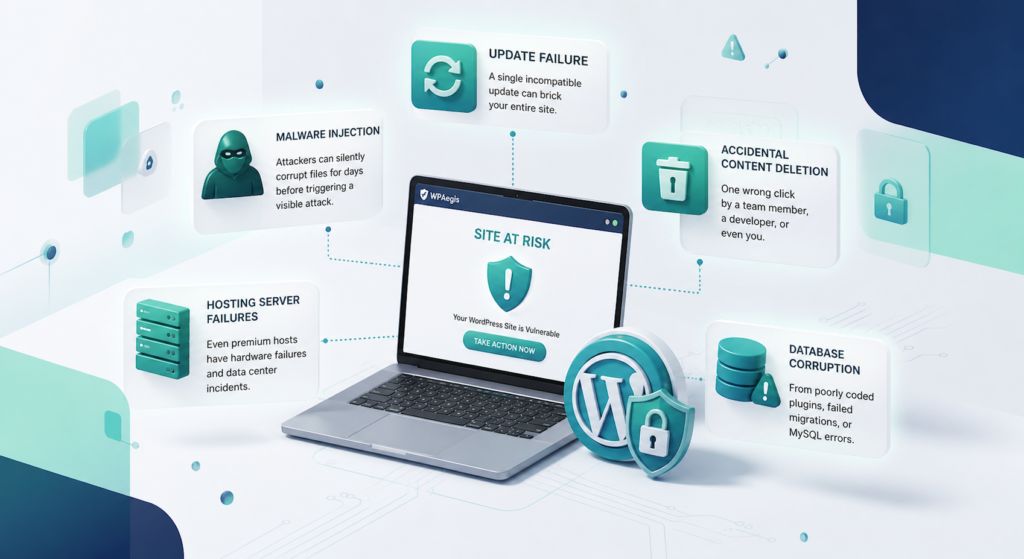
- Plugin or theme updates gone wrong, a single incompatible update can brick your entire site.
- Malware injection attackers can silently corrupt files for days before triggering a visible attack.
- If your site is already compromised, get immediate help with our fast malware removal services.
- Accidental content deletion, one wrong click by a team member, a developer, or even you.
- Hosting server failures, even premium hosts, have hardware failures and data center incidents.
- Database corruption from poorly coded plugins, failed migrations, or MySQL errors.
What a “Good” WordPress Backup Actually Looks Like:
Most people think installing UpdraftPlus and pointing it to Dropbox covers them. It’s a start, but a complete WordPress backup strategy involves more refinement than that.
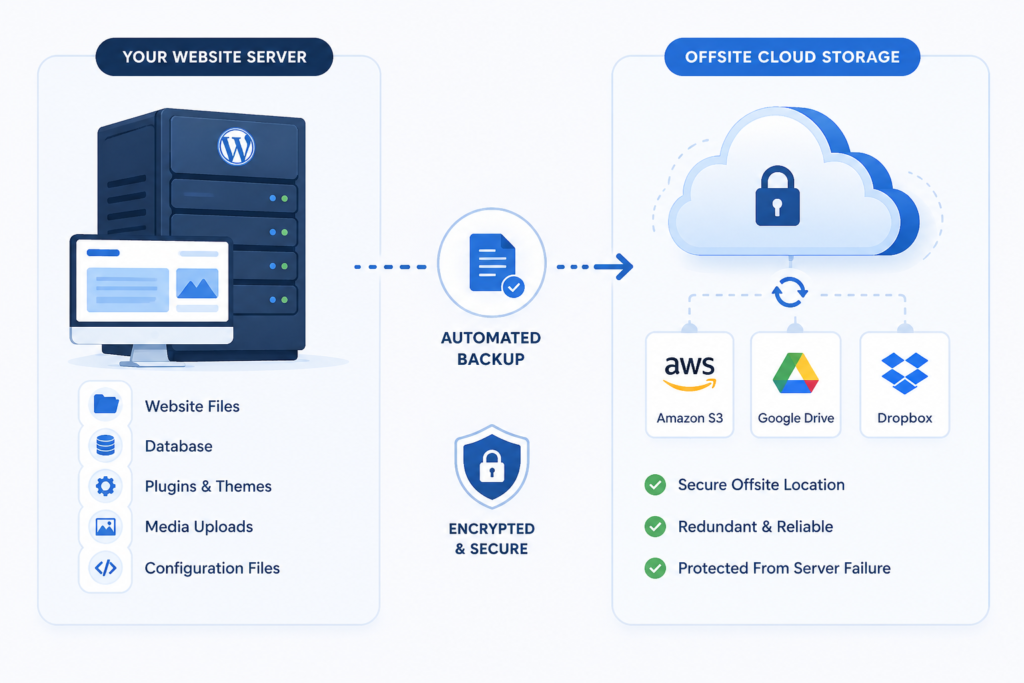
- Full-Site Backups, Not Just the Database:
A common misconception is that backing up the WordPress database is not enough. Here’s what most backup guides conveniently skip: your database is just one piece of what keeps your site alive. A backup worth trusting means capturing the whole picture:
- WordPress core files
- Your active theme and child theme files
- All installed plugins
- Uploaded media (images, PDFs, documents)
- Custom code and configuration files (like wp-config.php and .htaccess)
A backup that captures only the database will leave you partially blind during recovery. Always back up both the database and all site files together.
2. Daily Back-up Frequency Non-Negotiable for Active Sites:
If your site publishes new content, processes orders, or collects form submissions, infrequent backups expose you to serious risk of data loss. To think about it: the right backup frequency matches how often your site changes. A static portfolio might survive weekly backups, but a WooCommerce store needs daily backups, or even multiple backups per day.
Need this handled automatically? Learn how our secure daily backup service keeps your data safe without the hassle.
3. Offsite Storage Is the Whole Point:
Storing backups on your website’s server is reckless. When your server goes down, so do your backups. This mistake can wipe out your site in an instant. Act now to prevent irreversible loss. Reliable offsite storage options include:
- Amazon S3 enterprise-grade, scalable, pay-per-use service.
- Google Drive or Dropbox is accessible and easy to configure with most backup plugins.
- Backblaze B2 is cost-effective, purpose-built for backup storage.
- A secondary server in a different geographic region. The rule is simple: your backup should live somewhere your host cannot touch.
4. Test Your Backups, Or They Mean Nothing:
An untested backup is a lot like a fire extinguisher you bought six years ago and shoved in a closet. Maybe it works. Maybe the pressure dropped, and it’s completely useless. You’ll find out when the kitchen’s already on fire. Do the drill now, pull everything into a staging environment, and see what actually comes back intact. That’s entirely the point.
Schedule a restoration test at least once a quarter, and spin up a staging environment to restore your backup. Confirm that your site loads, that your database is intact, and that all your media files are present. This 20-minute exercise could save you from a 72-hour nightmare.
5. Retention Policy: Keep Multiple Recovery Points:
Don’t just keep yesterday’s backup. Keep a meaningful history; at least 30 days of daily snapshots is the standard for most business websites. This matters because:
- Malware infections often go undetected for days or weeks.
- If you discover a problem on Day 14, you need the ability to restore to Day 1.
- Accidental deletions sometimes aren’t noticed immediately.
Why DIY backup management fails:
Most business owners install a backup plugin, assume it’s working, and then forget about it. When something breaks, the oversight becomes clear.
The reality of self-managed WordPress backups:
Backup plugins silently fail when storage limits, authentication token expiry, and PHP timeouts cause backups to stop without alerts.
No one’s monitoring if your backup missed 12 consecutive runs, would you know?
Recovery is a skill restoring a WordPress site under pressure, correctly, which requires technical knowledge most business owners don’t have when they need it most.
Security of backup files, unencrypted backups stored insecurely, creates its own vulnerabilities.
An unmonitored backup is a dangerous illusion that leaves you exposed when disaster strikes. Don’t wait for reality to prove it.
WPAegis provides proactive WordPress maintenance with the best Backup service when things go wrong. Get daily backups, security monitoring, and expert support under one plan.
The Hidden Costs of Getting This Wrong:
When a WordPress site fails without a working backup, the damage compounds quickly:
| Consequence | Estimated Impact |
| Developer emergency recovery fees | $200–$2,000+ |
| Lost e-commerce revenue per hour of downtime | Varies often $500–$5,000+ |
| SEO ranking damage from extended overtime | Weeks to months to recover |
| Reputational damage with clients/customers | Often unquantifiable |
| Rebuilding lost content manually | Days to weeks of work |
A monthly WordPress care plan with professional backup management costs a fraction of the cost of a single recovery incident. Waiting could mean paying far more when disaster strikes; the math is rarely close.
The WPAegis Approach: Backup as Part of a Complete Protection System:
At WPAegis, we don’t treat backups as a checkbox; we treat them as the foundation of every care plan we offer.
Here’s what that looks like in practice:
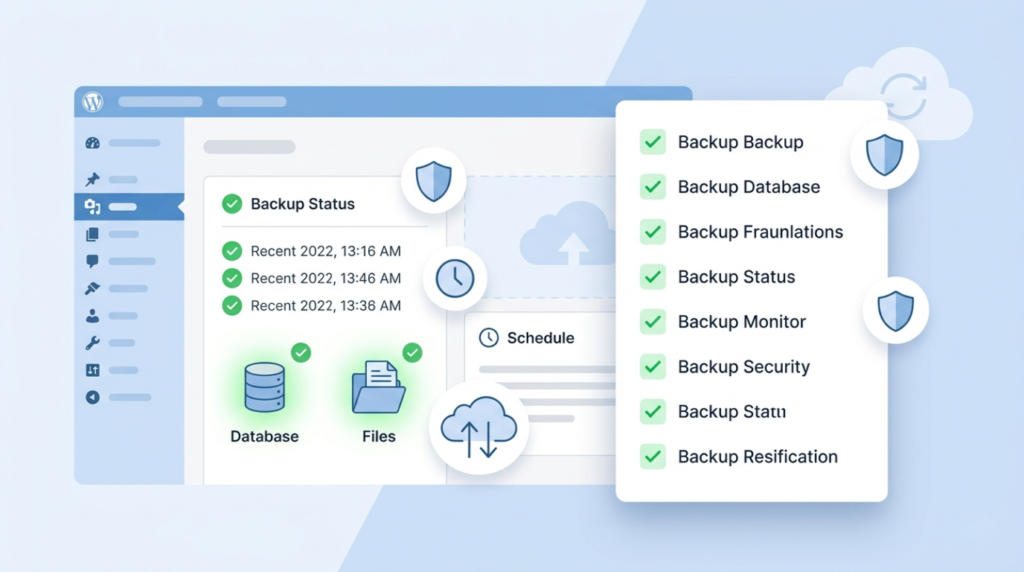
- Automated daily backups of your full WordPress installation, files, and database together
- Encrypted off-site storage to multiple redundant locations
- Backup health monitoring with alerts if any scheduled backup fails
- 30-day retention so you always have meaningful recovery options
- The system automatically captures pre-update backup snapshots.
This isn’t just backup, it’s a complete proactive protection powered by WPAegis.
Before you sign up for any managed maintenance service, ask these questions:
On backups specifically:
- Are backups automated and scheduled daily?
- Where is backup data stored, onsite or genuinely offsite?
- How long is backup history retained?
- Are backups tested or verified to ensure successful restores?
- What’s the restoration process and turnaround time if I need it?
On overall maintenance:
- Are plugin, theme, and core updates performed manually with testing, or auto-applied blindly?
- Is uptime monitored 24/7?
- Is malware scanning part of the plan?
- Do I get a real human to contact when something breaks?
The answers will tell you everything about whether a service is genuinely proactive or simply going through the motions. Don’t leave it to chance; assess your site’s backup effectiveness.
Book a free WordPress site audit with WPAegis, and we’ll tell you exactly where you stand, no obligation, no jargon.
Your daily WordPress Backups Checklist:
Use this checklist to verify your WordPress daily backups are properly configured
before taking any next steps:
- Full-site backups running (files + database, not database only)
- Backup frequency matches how often your site changes (daily minimum for active sites)
- Backups living somewhere your host has zero control over, a genuinely separate, independent location
- Backup completion is monitored, and alerts are set for failures
- At least 30 days of backup history retained
- Restoration tested in the last 90 days on a staging environment
- Pre-update snapshots taken before major changes
- Backup files are encrypted at rest
If you checked fewer than five, your site is exposed.
A WordPress website that generates business shouldn’t be treated like a hobby; it’s your business asset that deserves protection. Reliable daily backups aren’t just nice; they are the last line standing between recoverable incidents and irreparable loss. Don’t wait until it’s too late.
If you’re ready to stop gambling with your site’s availability and trust that protection is actually handled, WPAegis is built exactly for that. WPAegis care plans include daily automated backups, offsite encrypted storage, uptime monitoring, malware protection, and expert WordPress support, all handled for you.
FAQ’s:
Not even close. Your database holds content, but your site also runs on theme files, plugin files, images, wp-config.php, and more. Back up only the database, and you’ll recover your words but not your website.
Your backup is sitting on a completely separate platform, such as Google Drive, Amazon S3, Backblaze, or somewhere with no connection to your web host. If your server dies tonight, those files are still there in the morning.
At least 30 days. Malware often sits quietly in your files for weeks before anything looks visibly wrong. By the time you catch it, a 7-day backup history might mean every copy you have is already infected.
UpdraftPlus does the job well, but it’s just automation. Someone still needs to check that files are landing correctly, storage hasn’t run out, and the schedule is actually running. Most sites that lose data had a plugin installed.
Only if scheduled badly. A backup running during peak afternoon traffic will compete with real visitors for server resources. Schedule it for 2–4 am, use a solution that processes files incrementally, and most visitors will never know it runs.




Leave a Reply