


WordPress 7.2 Beta 1 dropped on October 20, 2026, and if you run even one WordPress site, you probably have a few questions. What’s actually in it? Can you install it today? And is any of it worth your attention, or is this just a point release with a fresh coat of paint?
Here’s the short version. There’s quite a lot in it. You can install it today, but please don’t put it on a live site. And yes, a handful of the changes are genuinely useful: Notes get a proper upgrade, the admin should feel quicker, and developers finally get a built-in way to store API keys and other credentials.
We read the official announcement line by line, compared it with the other coverage out there, and wrote this guide in plain English. You’ll find the release date, a feature-by-feature breakdown, four ways to test the beta safely, a checklist for your own site, and straight answers to the questions people keep asking.
WordPress 7.2 Beta 1 at a glance
- Beta 1 was announced on October 20, 2026; it’s strictly for testing and development.
- The headline changes: wider responsive design controls, easier Global Styles management, text shadows, upgraded Notes, browser-side image processing in the Media Library, and a faster admin.
- For developers: a new Secrets API, a bigger Abilities API, Interactivity API updates, and HTML API improvements.
- You can try it through the Beta Tester plugin, a direct zip download, WP-CLI, or WordPress Playground right in your browser.
What does “Beta 1” actually mean?
WordPress ships big releases in stages like first-come alpha builds, which are mostly for contributors. Then the betas, where the features are largely in place, and the wider community starts testing. After that come release candidates, which are basically the finished product waiting for a final green light. And finally there’s the stable release that lands on everyone’s dashboard.
Beta 1 is the first public testing build. That makes it a great early look, but it’s also the least polished version you’ll ever see of a given release. The official announcement is blunt about it: this is for testing and development only, and you shouldn’t install or run it on production or mission-critical sites. Use a test environment or a local copy.
Scope can also still move because features that aren’t ready in time usually slide to a later release rather than being forced in, and the ones that are in can change shape or get fixed between now and December. So read everything below as “what’s on the table today,” not as a final promise.
WordPress 7.2 release date and schedule
The official Beta 1 announcement puts the final release of WordPress 7.2 on December 8, 2026.
If you’ve seen other dates floating around, that’s because earlier planning pages talked about a December 8 to 10 window, with December 9 as the proposed day. The announcement now names December 8, so that’s the date to circle.
Beta 1 itself runs through the first few days of the beta window, roughly October 20 to 22 according to the development cycle page. Developers who want their feedback to land early have the best shot at influencing the final build if they report problems in that stretch. After Beta 1, expect more beta builds and then release candidates. The planning schedule published earlier in the cycle pencilled in Release Candidate 1 for mid-November (November 17 to 19), Release Candidate 2 for the last week of that month, and Release Candidate 3 in the first days of December. Schedules shift, so check the official release schedule before you plan around any of those dates.
It’s also the last major WordPress release of 2026. Matt Mullenweg is listed as release lead, with David Baumwald coordinating, and the plan has been to ship the final version around State of the Word. Some coverage also mentions that the launch will be livestreamed, though that’s not in the Beta 1 post, so treat it as likely rather than guaranteed.
WordPress 7.2 new features for the editing experience
This is where most site owners, bloggers, and designers will spend their time. The official post groups these under “Editing Experience,” and honestly, it’s a more practical list than you might expect from a beta announcement.
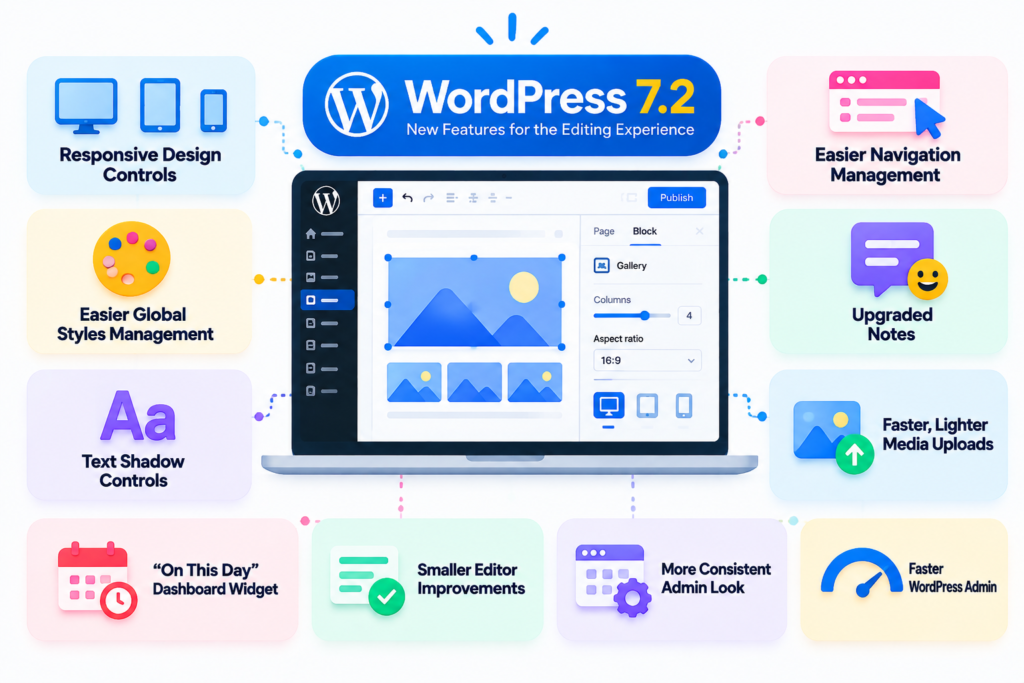
Responsive design controls reach more blocks
WordPress 7.1 introduced viewport-specific styling, which is a fancy way of saying you can style a block differently on desktop, tablet, and phone. Version 7.2 pushes that idea into more design tools and more blocks.
The example the announcement gives is the Gallery block; you’ll get responsive settings for columns, image cropping, and aspect ratios. In everyday terms, that could mean a four-column gallery on a wide screen that drops to two columns on a phone, without you writing a single line of custom CSS or installing yet another plugin. If you’ve ever fought a theme over how a gallery stacks on mobile, you’ll understand why this matters.
Easier Global Styles management
Global Styles are the site-wide design rules you set in the Site Editor: fonts, colors, spacing, and so on. They’re powerful, but once a few different people have edited a site, it becomes hard to tell which blocks follow the rules and which ones have been tweaked by hand.
WordPress 7.2 tackles that with a new “Customized” filter that helps you find blocks with modified styles. It also shows inherited Global Styles values directly in the block inspector controls, so you can see where a setting is coming from instead of guessing.
Plus, it adds expanded design tools and support for styling form elements, which should help if you want your contact forms and search fields to match the rest of your brand.
If you manage client sites or a site with several editors, this might be the most quietly useful change in the whole release.
Text shadow controls
Text shadows are finally getting proper support. You’ll be able to set them through block settings, and theme authors can define them as presets in theme.json. That second part is the important one. Presets mean a site can keep its typography consistent instead of having a dozen slightly different shadows scattered across pages.
A small word of advice from experience with design tools in general: text shadows are easy to overdo. Used lightly, they help text stay readable over busy images. Used heavily, they make a page look like a school project from 2009.
Easier navigation management
Managing menus in the Site Editor has never been the smoothest experience, but in 7.2, you’ll be able to add and edit navigation items directly from the editor sidebar. The goal is to let you fix a menu without leaving what you were doing. It’s a small change on paper, but anyone who’s lost their place while jumping between screens will appreciate it.
Notes get a real upgrade
Notes are WordPress’s built-in way to leave comments on blocks while you write, and 7.2 gives them the biggest refresh so far. Here’s what’s changing:
- Emoji reactions on notes, so a quick thumbs-up can replace a “looks good” reply.
- A new toolbar icon that makes Notes easier to manage, and they move onto the editor canvas, so conversations sit right in the margin next to the content they’re about.
- You can keep Notes and the block settings sidebar open at the same time, which means you can read feedback and fix the block without closing one panel to open the other.
- A minimized Notes mode that cuts down on visual clutter, plus better positioning and display.
7.2 Beta 1 provides Faster media uploads
WordPress 7.2 provides several options, like images can be resized, compressed, and converted in the browser before they’re uploaded, instead of leaving all of that work to your server. Why should you care? Because many budget hosting plans have limited image-processing capabilities, and uploads of large photos can be slow or fail outright. Doing part of the job in the browser can speed things up, cut down on server load, and improve support for modern image formats. If you’re a photographer, a publisher with lots of images, or someone on a modest host, this could be a noticeable improvement.
One thing to check while testing: if you already run an image optimization plugin, see how it behaves alongside the new browser-side processing. Two tools handling the same file isn’t always a problem, but it’s worth confirming before the final release.
The new “On This Day” dashboard widget
This one is simple and kind of charming because a new dashboard widget shows posts you published on the same date in previous years; it’s basically for revision and memorization. It’s a nice nudge to revisit old content, celebrate anniversaries, or spot older posts that deserve a refresh or a reshare.
For anyone who cares about SEO, that last use is the real value. Old posts with outdated details quietly lose traffic, and a reminder on your dashboard is a good excuse to update them.
Better admin look
The idea is to make the classic dashboard feel more like the newer editing screens by replacing dashicons from the WordPress icon library. If you’re a plugin or theme developer who adds custom menu icons, take a look at how yours appear next to the new ones during testing.
A refreshed block settings inspector
A new inspector built on the DataForm component system changes how block settings are managed in the editor. In plain terms, controls should feel more consistent, and developers get a more extensible base to build on.
A faster WordPress admin
This is one a lot of people will feel without needing to read a changelog. WordPress 7.2 changes how admin scripts and stylesheets load. Instead of bundling them into large combined files, it loads them individually so browsers can cache them more effectively. A new prefetching mechanism also tries to guess which admin screen you’ll visit next, and loads its resources ahead of time. Moving between the dashboard, the posts list, and the editor should feel snappier.
It’s a clever approach, though anything that predicts your next click deserves some real-world testing on slower hosting. If your admin already feels sluggish, this is worth trying on a staging copy to see whether it helps.
WordPress 7.2 For Developers
If you build plugins, themes, or custom blocks, the developer section of the announcement is where the interesting stuff lives.
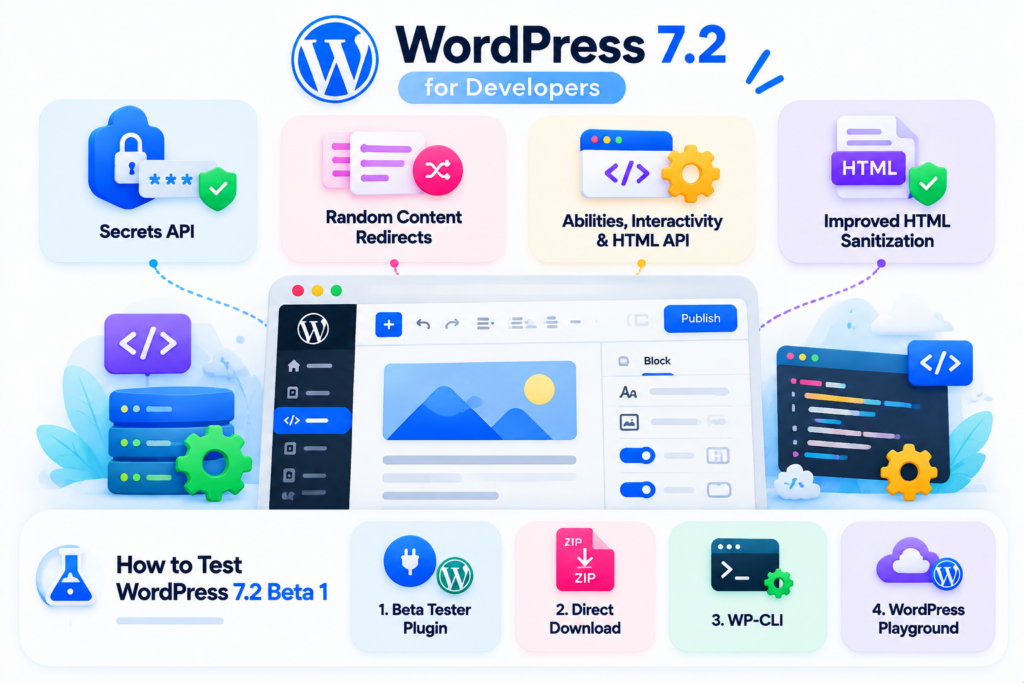
The new Secrets API
This is probably the biggest developer-facing addition because the Secrets API gives a secure way to store sensitive credentials and supports encryption at rest and customizable storage providers.
Why that matters: right now, plugins tend to stash API keys in the options table in plain text, or invent their own half-secure solution. A shared, built-in approach should make integrations safer and more consistent. If you maintain a plugin that connects to third-party services, start reading up on it now.
Random content redirects
WordPress 7.2 adds support for random content redirects. A dedicated URL can send visitors to a randomly selected post, which is a fun way to get people exploring older content. Think of it as the “surprise me” button for your archive.
Abilities API, Interactivity API, and HTML API
The Abilities API gets new capabilities for accessing and querying WordPress data. The Interactivity API picks up new ways to render trusted HTML and manage reactive navigation, which gives developers more flexibility with dynamic blocks. And there are improvements to the HTML API, block supports, and responsive design tools for more reliable markup handling and better control over how custom blocks look across devices.
Things reported in developer roundups
Beyond the official post, at least one developer-focused roundup says Beta 1 includes a rewrite of the wp_kses() HTML sanitizer on top of the HTML API, with changes in how character references, script and style contents, and some malformed markup are handled. The same coverage flags indicate that some block settings need to move from InnerBlocks props to block type settings in registerBlockType(), and that a few public exports are changing in the block editor and DataViews packages.
We haven’t verified those details against the official developer notes, so double-check them on Make WordPress before acting on them. But if you maintain a plugin that filters or outputs user-submitted HTML, testing against the new sanitizer behavior is a smart move either way.
How to test WordPress 7.2 Beta 1 (without wrecking your site)
The official announcement lists four ways to test. Whichever you pick, do it on a staging site, a local install, or Playground. Never on the site that pays your bills.
Option 1: The WordPress Beta Tester plugin
You can install and activate the WordPress Beta Tester plugin on a test install and, from settings, choose the “Bleeding edge” channel and the “Beta/RC Only” stream, then run the update from your Dashboard like any normal WordPress update.
Option 2: You can download directly
Download and install the Beta 1 zip; this suits people who like full control or who are setting up a clean local environment.
Option 3: WP-CLI
If you’re comfortable in the terminal, this is the quickest route:
wp core update –version=7.2-beta1
Option 4: WordPress Playground
This is the no-setup option. Open a 7.2 Beta 1 Playground instance, and WordPress runs right inside your browser.
It’s perfect if you just want to click around the new features, try Notes, or look at the admin changes without touching anything on your own server. Keep in mind that it won’t have your plugins or content, so it can’t tell you whether your own site will work.
A simple checklist for testing on your own site
Playing with a fresh install is fun, but the real value is finding out whether your actual setup survives. Here’s a practical order of operations:
- Back up first. Take a full backup of files and database because rolling WordPress back after a major update can get messy, so a clean backup is your real safety net.
- Clone your site to staging. Most decent hosts offer one-click staging. If yours doesn’t, a local copy works too.
- Turn on debugging. Enable WP_DEBUG and WP_DEBUG_LOG on staging so PHP notices and deprecations show up in the log.
- Update to Beta 1 on staging only. Use any of the methods above.
- Run your normal daily routine. Write and publish a post. Edit a page. Upload a few images, including large ones and different formats. Edit a menu. If you use WooCommerce or a membership plugin, run a test checkout or login.
- Poke at the new features. Try responsive Gallery settings, the Customized filter in Global Styles, Notes, and the new media processing.
- Watch the front end. Look at forms, galleries, and any custom blocks on phone and desktop widths.
If something breaks, write down exactly what you did, what you expected, and what happened. That’s the raw material for a useful bug report.
Should you update to WordPress 7.2 Beta 1?
It depends on who you are, so here’s an honest breakdown.
If you run a live business or blog: Don’t install the beta on your live site. Stay on the current stable branch (the 7.1 line, with 7.1.3 being the latest maintenance and security release at the time of writing) and keep it updated. Plan to test 7.2 on staging once release candidates arrive, and update after the final release when you’ve confirmed your plugins and theme behave.
If you build plugins or themes: Test as soon as you can, particularly anything touching HTML sanitizing, block registration, custom icons in the admin, or credential storage. Beta feedback has the most influence early.
WordPress’s own testing guidance for previous releases says the same thing: it’s completely fine to wait, and you should always test before updating a production site. Being second in line isn’t a failure. It’s often the smartest move.
Why plugin compatibility deserves extra attention this time
Every major WordPress release carries the same risk: your site is a stack of code from different authors, and any one piece can lag. In 7.2, a few changes touch areas where plugins and themes commonly hook in. The admin asset loading changes, the new block settings inspector, the swapped admin icons, the new image processing flow, and the updated sanitization behavior all brush up against things third-party code relies on.
When you check a plugin’s page on WordPress.org, you’ll see a “Tested up to” version. That number is the developer’s claim, not a guarantee, so it’s a starting point rather than proof.
A few things to look for in particular:
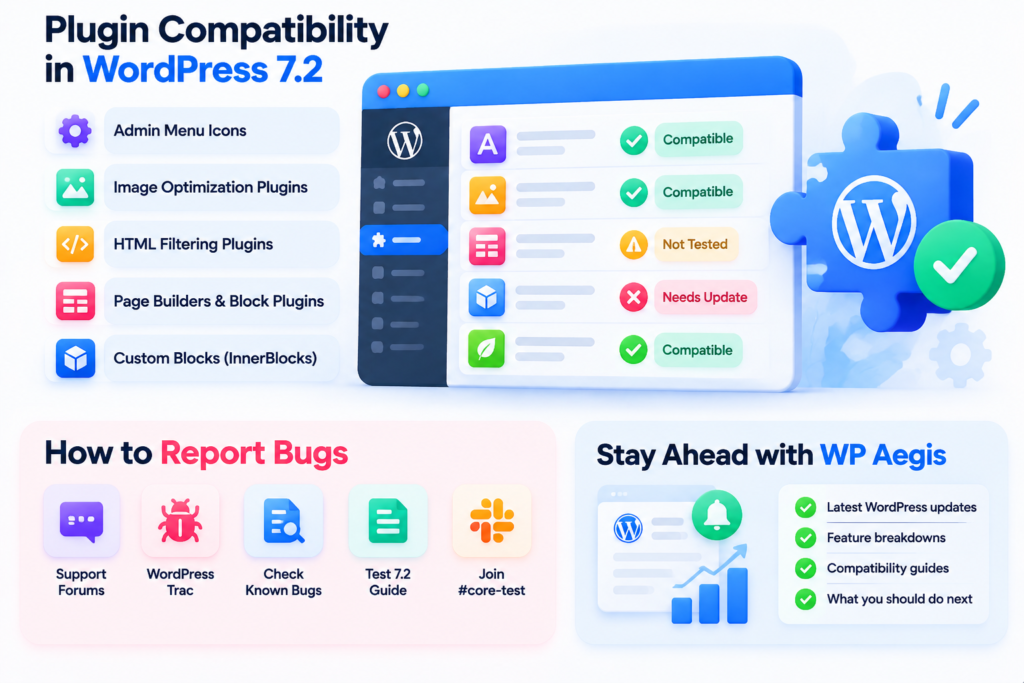
- Plugins that add custom admin menu icons or heavily restyle the dashboard.
- Image optimization or media offloading plugins that hook into uploads.
- Anything that outputs or filters user-submitted HTML.
- Page builders and block plugins with custom inspector panels.
- Custom blocks that use InnerBlocks settings in the old way.
How to report bugs and help the release
Testing is open to everyone, and honestly, it’s one of the easiest ways to give something back to the project.
- You can post general issues in the Alpha/Beta area of the support forums, and if you can reproduce a bug reliably, file a ticket on WordPress Trac.
- Check the list of known bugs first, so you don’t duplicate someone else’s report.
- Read the official Help test WordPress 7.2 post for what the team wants checked.
- Join the #core-test channel on Making WordPress Slack if you want to chat with other testers.
A good bug report is specific. Say which WordPress version, PHP version, theme, and plugins you were using, then list the exact steps to reproduce the issue. “It’s broken” helps nobody. “Adding a Gallery block on mobile width and setting two columns resets to four after saving” helps a lot.
Staying ahead of WordPress updates with WPAegis
Keeping up with beta builds, release candidates, and security releases is a job in itself, and most site owners have better things to do. That’s why we cover WordPress releases here at WPAegis in plain language: what changed, who it affects, and what you should actually do about it before a new version lands on your dashboard.
We’ll keep this article updated as Beta 2, the release candidates, and the final version arrive, so you won’t have to piece together the story from half a dozen sources. Bookmark wpaegis.com, and check back around the release candidates for a compatibility checklist you can use on release day.
WordPress 7.2 Beta 1 FAQs
No. The official announcement says plainly that Beta 1 is for testing and development only, and that it shouldn’t be used on production or mission-critical sites.
Earlier planning pages mentioned a window of December 8 to 10, but the Beta 1 announcement names December 8. Dates can still shift if testing turns up serious problems, so check the official schedule closer to launch.
First and foremost, back up everything, clone your site to staging, and then update that copy with the Beta Tester plugin, the direct zip download, or the WP-CLI command. If you only want to look around, WordPress Playground runs in your browser and needs no setup at all.
For most people, the standouts are the upgraded Notes, the easier Global Styles tools (including the Customized filter), responsive Gallery controls, browser-side image processing in the Media Library, and a faster-feeling admin. The On This Day dashboard widget is a small extra that’s handy for refreshing older content.
Post it in the Alpha/Beta area of the WordPress support forums if you’re not sure what’s going on. If you can reproduce the problem reliably, open a ticket on WordPress Trac and include your exact steps, environment, and any error messages.





Leave a Reply