


If you’re searching for solutions regarding WordPress site issues solutions because your site just went down, go straight to the error section that matches what you’re seeing on screen, like: white page, database error, 500, homepage not loading, plugin gone rogue.
WordPress runs somewhere between 40 and 43% of the internet; that scale is exactly why “WordPress error” is one of the most searched phrases in this industry, year after year. Not because WordPress is fragile by design, but because millions of different combinations of hosting, plugins, themes, and half-finished customizations are running on it at once. Something is always about to collide and make serious WordPress site issues.
Is WordPress Down Right Now, Or Is It Just You?
Before you touch a single file, answer this question first, because it changes everything about how you fix it. Open your site on your phone with WiFi off, using mobile data only, then ask a friend on a different network to load it. If it loads for them and not you, this isn’t a WordPress issue at all; it’s your local DNS cache, your ISP, or a browser extension quietly blocking requests. Clear your DNS cache, try an incognito window, and move on with your day.
If it’s genuinely down for everyone, you see some frequent issues like: 200 means the server is responding and the problem is somewhere inside WordPress. A 500 or 503 means the server itself is struggling, or no response at all usually points to DNS or a host-level outage.
Why you are facing frequent WordPress site issues? The Honest Answer
There’s rarely one single villain behind WordPress site issues because sites that keep crashing on repeat usually have two or three weak points stacked on top of each other: cheap shared hosting, an outdated plugin, and a PHP memory limit that was fine three years ago and isn’t anymore. Independent vulnerability research has tracked well over 6,000 new WordPress vulnerabilities disclosed in a single recent year, and the overwhelming majority sit in third-party plugins rather than WordPress core itself. The plugin you installed last month from a developer who hasn’t logged in since 2023 is a different story entirely.
That’s the pattern behind almost every “why does WordPress keep crashing or why i am facing frequent WordPress site issues” search: it’s rarely WordPress. It’s usually one faulty WordPress plugin, one theme that never got tested against the current PHP version, or hosting that’s a size too small for what the site has grown into.
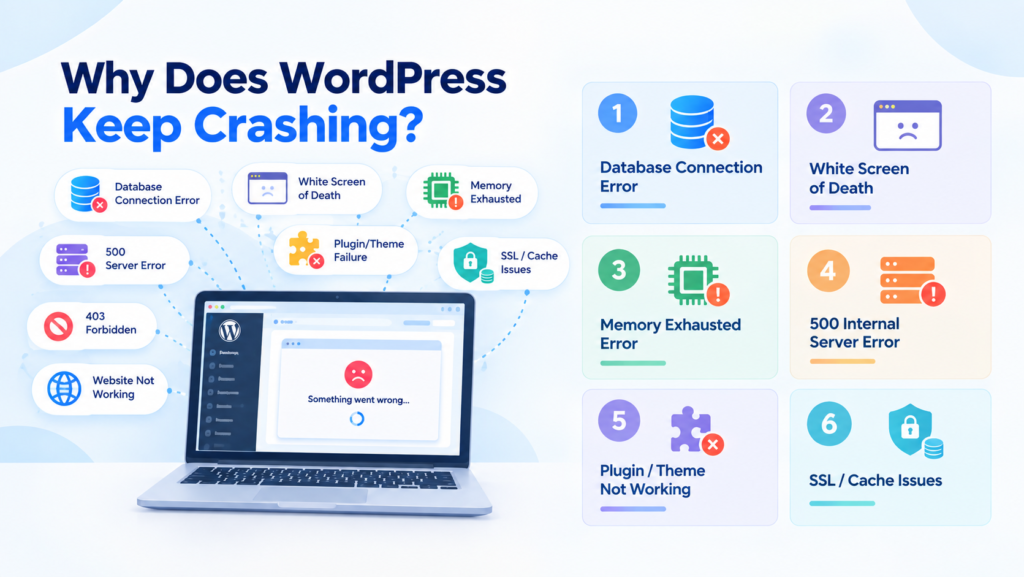
1. WordPress Error Establishing a Database Connection
One of the crash errors that makes your stomach drop because PHP is technically running, but WordPress can’t pull a single post, setting, or user record from the database. As a result, you get “Error establishing a database connection”, if you run a store, every minute of this is a lost order, and if you run a lead-gen site, your contact forms are dead in the water.
It’s urgent, and it’s also usually fixable in under fifteen minutes once you know where to look and where to start.
What’s actually causing it, in order of likelihood:
- Wrong database credentials sitting in wp-config.php, often after a migration where someone copied the file from staging and forgot to update it.
- The database service itself is down (a host outage or a crashed MySQL process).
- Corrupted tables, usually following a failed update or a disk problem.
- You’ve hit your host’s database connection limit, which happens more than people expect on busy sites with weak hosting plans.
We’ve also seen this after a migration where files moved, but the database user permissions didn’t come along for the ride.
How to diagnose it without guessing:
- Confirm it’s not just you (same test as above, like checking from different networks, different devices).
- Check your host’s status page for checking it’s only facing specific problem or more people.
- Open wp-config.php and check DB_NAME, DB_USER, DB_PASSWORD, and DB_HOST; a non-standard database host instead of localhost is a classic trap after a server migration.
- Try logging into the database directly through phpMyAdmin or the command line, and if login fails, it’s a credentials or permissions problem, not corruption.
- Scan tables for a “crashed” flag in phpMyAdmin, or run mysqlcheck from the command line if you have access.
2. White Screen of Death (Your Homepage Not Loading, Nothing Else Either)
The White Screen of Death is WordPress’s least helpful trick: something has fatally errored, and you get zero visible message. Just a blank page, often the exact symptom people mean when they type “wordpress homepage not loading” or “wordpress homepage not working.”
Why it happens: a PHP fatal error halts output entirely, but if error display is switched off (the normal, sensible setting on a live site), you’re left staring at nothing.
Usual triggers: a plugin update that ships a bug, a stray character in your theme’s functions.php, a plugin that suddenly needs a newer PHP version than your server is running, or a memory ceiling getting hit mid-render.
The calm version of fixing this:
- Check /wp-admin/ and the homepage separately; sometimes only one of them is actually blank.
- Turn on logging, not display. In wp-config.php, enable WP_DEBUG and WP_DEBUG_LOG, but leave WP_DEBUG_DISPLAY off in production so you’re not exposing file paths to visitors.
- Read /wp-content/debug.log and the answer is almost always sitting right there.
- If you can reach the dashboard, turn off plugins from the Plugins screen. If you can’t, rename the /wp-content/plugins/ folder via FTP to something like plugins. off, WordPress will deactivate everything without deleting a thing.
- Rename your active theme’s folder so WordPress falls back to a default theme, and you can see if the theme is the culprit.
The mistake that costs the most time:
Changing five things at once, like CDN settings, DNS, deleting random plugins, and having no idea which change actually fixed it, or made things worse. Change one variable, test, then move to the next.
3. Memory Exhausted Error
WordPress telling you, politely, that something on your site is hungrier than it used to be.
You’ll see something like “Allowed memory size of X bytes exhausted,” or you’ll notice the Media Library and plugin update screens timing out for no obvious reason.
Check define(‘WP_MEMORY_LIMIT’, ‘256M’). Still, if a site that ran comfortably on 128M suddenly needs double that, something changed underneath it; it could be a page builder update, a backup plugin doing heavy work during regular page loads instead of off-hours, a mega-menu plugin loading assets on every single page, or WooCommerce paired with a reporting plugin running expensive queries.
Our process:
Confirm the current limit through Site Health, raise it modestly within what your host allows, then find the actual culprit by turning off plugins in batches and re-testing the specific action that triggers it, like importing media, opening the Customizer, whatever it is. Checking your PHP version matters here too; a current PHP release genuinely uses less memory and runs faster than an outdated one.
For prevention: don’t run heavy backups during page loads; schedule them via cron instead. Be wary of “kitchen sink” plugins trying to do twenty unrelated jobs. And if your site is database-heavy, object caching solves more memory headaches than people expect.
4. 500 Internal Server Error
A 500 is your server shrugging at you, because WordPress might be the cause and sometimes it might not be.
Common culprits we’ve seen mostly are: bad .htaccess rules, PHP fatal errors that are getting masked instead of shown, file permission problems, a caching layer that’s misconfigured, or a server module mismatch after a hosting migration.
Shortest path to an actual answer:
- Check your server’s error logs first; a decent hosting provider gives you access, and this is where the real story lives.
- Rename .htaccess and reload the page, but if that fixes it, regenerate permalinks from inside WordPress.
- Disable plugins by renaming the folder.
- Switch to a default theme.
- Confirm PHP itself is running with a simple phpinfo() test file, then delete that file immediately afterward; never leave it sitting there.
5. 403 Forbidden Error
A 403 means the server understood exactly what you asked for and refused anyway.
Typical causes: wrong file permissions, a security plugin’s rules blocking something legitimate, a CDN or WAF false positive, hotlink protection catching your own assets, or a stray “deny from all” rule sitting in .htaccess.
On permissions: “755 for folders, 644 for files” is a solid baseline, but some hosts run PHP differently, so the honest advice is to use the least permission that actually works for your setup, not a rule copied from a forum post.
Isolating it:
- Is it global, or only on specific paths “ /wp-admin/, images, API endpoints”.
- Check response headers in your browser’s dev tools, and if a CDN or WAF is issuing the block, fix it there, not in WordPress.
- Temporarily bypass security plugins by renaming the plugin folder.
- Check file ownership- the quiet killer on VPS hosting after an SFTP upload goes to the wrong user.
The mistake we see constantly: setting everything to 777 “to make it work.” That opens a real security hole and often still doesn’t solve the actual ownership issue underneath it.
6. WordPress Website Not Working, When “Not Loading” Could Mean Five Different Things
“My WordPress site is not working” is a description, not a diagnosis, because it can mean any of these:
- DNS issue — the domain isn’t resolving, or it’s pointing at the wrong IP
- The server itself is down — host outage, container crash
- SSL/TLS problem — the browser is refusing the connection outright
- A PHP or WordPress fatal error — the server responds, the page is broken
- A front-end problem — the page loads, but appears blank because a script or stylesheet failed
Our triage order, every single time:
- Check DNS resolution with a DNS checker or nslookup, then ping the server and test the HTTP response with curl -I.
- Check your hosting status page, or ask support directly if there’s an active incident.
- Rule out your own browser and try incognito mode and a second device.
- If the server is responding, go straight to the logs.
The mistake we see weekly: Restoring a backup as the first move because that’s a sledgehammer. If the real cause is DNS propagation lag or an expired SSL certificate, you’ve just rolled back genuinely good content for absolutely nothing.
7. My Plugin Is Not Working: Why WordPress Plugins Keep Breaking
Plugins are the single biggest reason WordPress feels unpredictable, because every one of them wants to run on every page, all the time, often fighting for the same hooks.
The conflict patterns worth knowing:
- Two plugins hooking the same filters (SEO plugins and caching plugins clash constantly)
- Two plugins bundling different versions of the same JavaScript library
- A plugin assuming jQuery loads in a way that a newer theme no longer guarantees
- An admin-only plugin accidentally loading its scripts on the public-facing site
Isolating it without chaos:
- Reproduce the issue reliably first; “It breaks sometimes” tells you nothing actionable. Find the exact page or action that triggers it.
- Disable every plugin. If the problem disappears, you’ve confirmed it’s plugin-related.
- Re-enable in batches, not one at a time, if you’re running thirty-plus plugins. A binary search (halves, then quarters) gets you to the answer far faster.
- Once you’ve found the pair fighting each other, try rolling back one plugin’s version.
- Decide: replace it if it’s abandoned, patch it if you own the code, or isolate it to only the page or role where it’s actually needed.
If a plugin update is what triggered your “WordPress crash after plugin update” moment, the fastest safe move is almost always rolling that one plugin back to its previous version. At the same time, you test, not turning off everything at once.
8. WordPress Theme Not Working
Themes tend to break things quietly rather than loudly, like layout damage, missing blocks, editor behaviour that feels off, instead of a clean fatal error.
Where this comes from in 2026 specifically: block theme updates changing templates without warning, a child theme still overriding templates that core changed two updates ago, custom functions copied from an old tutorial that no longer match current WordPress behaviour, or a theme that bundles a dozen “required” plugins, always worth treating as a warning sign.
Proving it’s the theme, not something else:
- Switch to a default theme, on staging if you can.
- Re-test the specific broken area like checkout, header, editor, whatever it was.
- Compare template overrides, especially on WooCommerce sites.
- Scan changelogs for deprecated functions your theme might still be calling.
We’re generally biased toward boring, well-maintained themes with clean update histories. A theme that needs twelve bundled plugins to look like its demo is signing you up for fragility down the road. And editing theme files directly on a live production site is asking for trouble; one stray character in functions.php and you’ve bought yourself a fresh white screen.
9. Browser Cache Issues
Caching is wonderful right up until it makes you doubt your own eyes.
Classic symptoms are: you change a button colour, and your own browser still shows the old one; one coworker sees the new homepage while another sees last week’s version; CSS loads but the layout looks unstyled because stale CSS is paired with new HTML structure.
Confirming it’s actually cache:
- Hard refresh (Ctrl/Cmd + Shift + R).
- Open the page in a private window.
- Test on a completely different device.
- Purge caches in the correct order: plugin cache first, then server cache, then CDN cache last.
10. SSL Issues
SSL problems are part configuration, part timing, and entirely about user trust the moment they appear.
You’ll typically see a “your connection is not private” warning, mixed content warnings from HTTP assets sitting on an HTTPS page, or a redirect loop.
Fixing it cleanly:
- Confirm the certificate is actually valid for your domain; check expiration and whether it covers both www and non-www.
- Make your WordPress Site URL and Home URL consistent, both using https://.
- Fix mixed content by updating any hard-coded HTTP URLs in theme settings, and use a proper search-and-replace tool for the database rather than editing it by hand.
- Check your reverse proxy or CDN’s SSL mode, a mismatch here is a very common cause of redirect loops.
- Force HTTPS at exactly one layer. Not in .htaccess, a plugin, and the CDN all at the same time.
When It’s Not a Classic Error: Misconfigured Credentials
Not every “WordPress not responding” moment is a crash; sometimes a specific integration is just wired up wrong. A common one we’re asked about: WordPress Moz credentials not properly set up. If you’re using a Moz integration for rank tracking or SEO data and it’s throwing an authentication error, it’s almost never WordPress at fault; it’s an expired or mistyped API key, or a plan tier on the Moz side that no longer includes API access. Re-generate the key from your Moz account, paste it in cleanly with no extra spaces, and save settings again. The same logic applies to most third-party API integrations plugged into WordPress: SMTP services, payment gateways, analytics tools. When the credentials are wrong, WordPress itself is healthy; it’s just being handed the wrong keys.
Why Site Owners Work With WPAegis Instead of Troubleshooting Alone
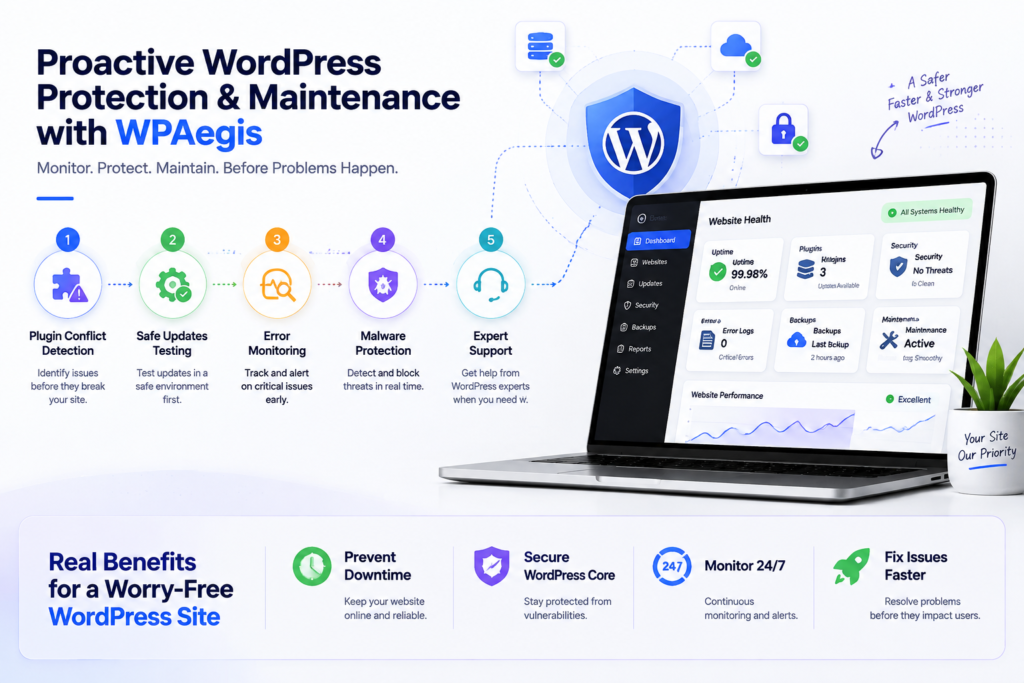
Reading a list like this helps once you’re already in the middle of a crisis. What actually prevents the WordPress site issues is someone watching your site before it happens, catching the plugin conflict before it takes checkout offline, flagging a risky WordPress update before it touches your live environment, and reading the log the moment an error shows up instead of the moment a customer complains.
At Wpaegis, we manage the unglamorous, constant maintenance work that keeps a WordPress site boring in the best possible way: proactive plugin and core updates tested before they go live, uptime and error monitoring that catches a crash in minutes rather than hours, malware and security hardening against the plugin-level vulnerabilities that account for most WordPress attacks, and a support team that actually answers when your homepage stops loading at 11 pm on a Friday.
If your site is down right now, or it keep facing WordPress site issues on a pattern you can’t quite pin down, reach out to us directly for help with WordPress problems; we’ll diagnose it, fix it, and put monitoring in place so it doesn’t happen again in silence next month.
FAQs From Real WordPress Users
Hosting is one factor among several, not the whole story. Cheap shared hosting with too many tenants on one server is a real and common cause, but so is a plugin conflict after an auto-update, a PHP memory ceiling getting hit by a traffic spike, brute-force login attempts saturating your available PHP workers, or database bloat that’s built up quietly over years. If your site goes down on a repeating pattern rather than randomly, that pattern is usually the clue, check what else happens at the same time (a scheduled backup, a marketing send, a specific plugin’s cron job).
Start by turning “random” into “specific.” Enable WP_DEBUG_LOG, reproduce the error, and read the actual log line instead of guessing. Random-feeling WordPress site issues are almost always triggered by something specific: a particular plugin combination, a particular page template, a particular time of day; you just haven’t connected the dots yet. If you’re not sure how to read what the log is telling you, that’s exactly the kind of diagnostic work worth handing off.
Test from a different network and device first, if it loads elsewhere, the problem is local to you, DNS cache or a network issue. If it’s down everywhere, check your host’s status page before touching WordPress itself; a genuine hosting outage resolves on its own and doesn’t need a WordPress-side fix.


Leave a Reply