


If you run a WordPress site, you probably have a list of things you meant to get to this week. WordPress 7.1.4 should move to the top of that list.
The release went live on October 28, 2026, and the WordPress project labeled it a security release because the fixes address vulnerabilities that could be exploited, not just small bugs or cosmetic problems. The release notes ask site owners to update immediately, and in this case that advice deserves to be taken literally.
This article walks through what 7.1.4 changes, who needs it, how to update without losing data, and what to watch for afterward. I’ll keep the technical parts readable, so you can follow along even if you don’t write code.
What WordPress 7.1.4 actually is
WordPress 7.1.4 is a maintenance and security update in the 7.1 release line. Its main job is to close security holes that were found in the software. It also includes several smaller fixes, though the security work is clearly the headline.
It’s also a short-cycle release outside the normal schedule for major versions, because the fixes were important enough not to wait; WordPress 7.2 is currently planned for December 8, 2026. A 7.2 beta is already available for people who want to test it, but it’s not something you should install on a live site.
If you’re new to WordPress version numbers, here’s a quick way to read them. The first number, 7, marks a major release with new features. The second number, 1, shows the feature cycle within that line. The third number, 4 in this case, tracks maintenance and security updates made after the original WordPress 7.1 release. So WordPress 7.1.4 is the fourth maintenance update for the 7.1 line, and it’s the version you want to be running.
Why a security release deserves same-day attention
Most WordPress updates are easy to put off. You see the notification, tell yourself you’ll deal with it on the weekend, and then the weekend turns into a month. Security releases are different, and the reason comes down to how attackers operate.
Once a vulnerability becomes public, or even once the fix is published, attackers often start scanning for sites that haven’t updated yet. The gap between “fix released” and “sites patched” is exactly the window they try to exploit. The shorter you can make that gap, the less time there is for someone to find your site and take advantage of it.
It’s also worth remembering that WordPress powers a huge share of the web and that popularity makes it an attractive target, and automated tools will check for known weaknesses across millions of sites. Even a small blog, a local business site, or a hobby project can be just as attractive to someone looking for an easy entry point.
The fixes in 7.1.4, grouped by what they affect
The release post lists more than a dozen separate fixes, and reading the full list is worth your time if you manage sites with complicated content. I’ll group them by theme, since that’s easier to understand than a long list of technical names.
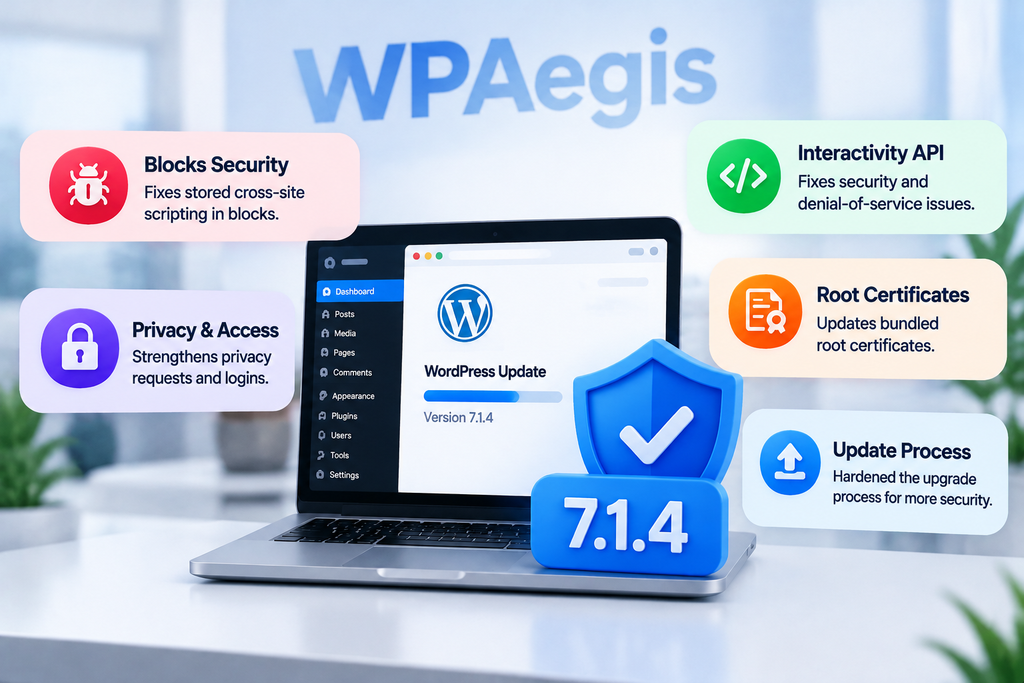
Stored cross-site scripting in blocks
A large part of this release deals with stored cross-site scripting, usually shortened to stored XSS. Here’s the simple version. Someone finds a way to save malicious code inside your site’s content, so the code sits in your database and runs whenever someone loads that page. Visitors, editors, and administrators can all end up running it without knowing.
The 7.1.4 release addresses several places where this could happen inside the block editor. These include custom block markup, the Playlist and image blocks, the Categories block, and the comment pagination blocks. Blocks are the building pieces you use to lay out a page, so vulnerabilities in them are easy to trigger through normal editing work. That’s exactly why they need fixing quickly.
The Customizer’s selective refresh feature also had a stored XSS issue that this release closes. The Customizer is where you adjust your theme’s settings and preview changes, so it’s another place where editors and administrators spend a lot of time.
Problems in the Interactivity API
The Interactivity API is the system behind many of the interactive features in modern blocks. It handles things like dynamic behavior on the front end of your site without needing to reload the whole page.
This release fixes several stored XSS flaws in that API. It also addresses a stored denial-of-service issue, which is a problem where someone could save content that makes the site slow down or stop responding. If you use blocks with interactive behavior, or you use themes and plugins built on the newer block system, these fixes are particularly relevant.
Privacy requests, logins, and hidden data
Some of the fixes relate to privacy and access control. These are easier to overlook, but they can matter a lot for a business. Privacy data removal requests that led to stored XSS: if your site handles privacy requests, such as deletion requests from visitors, this is a fix you want in place. Specially crafted user logins could also lead to stored XSS, which means the account name itself could carry the malicious code.
Another issue allowed unpublished Customizer changesets to be discovered by unauthenticated users. In plain terms, someone who wasn’t logged in could potentially see changes that were drafted but never published. That may include settings or content you didn’t intend to expose.
Finally, notes could be read by privileged users who didn’t have permission to edit the post the note was attached to. Notes are a collaboration feature, so this fix matters most for sites with several editors or contributors who work on sensitive content.
Updated root certificates
The release also updates the bundled root certificates, following a revocation involving eMudhra. Root certificates are part of how your site and the software establish trust when connecting securely to other services. You don’t need to do anything beyond installing the update, but it’s another reason not to skip it.
The upgrade process itself
The release post also mentions a weakness in the WordPress upgrade process that could lead to remote code execution during the upgrade window. Remote code execution means an attacker could run their own commands on your server. The “window” refers to the period while an update is happening.
The point is that the update process itself has been hardened, and the longer a site remains on an unpatched version, the longer it stays exposed to attackers who know about this type of problem. Updating promptly is the simplest answer.
Who needs this update?
If your site runs any version in the 7.1 line below 7.1.4, you should update. That includes sites that were on 7.1, 7.1.1, 7.1.2, or 7.1.3.
If your site is on an older version of WordPress entirely, moving to the latest supported line should be a priority because only the most recent version of WordPress is actively supported, and that usually means planning a careful upgrade rather than a quick click.
To check your version, go to your WordPress dashboard and look at the About WordPress screen, or check the Updates page. If it shows 7.1.4, you’re current. If it doesn’t, the update is waiting for you there.
How to update without the stress
Most of the time, a WordPress core update goes smoothly. When things go wrong, it’s usually because of a plugin or theme that wasn’t ready for the new version, or because someone skipped the backup. So the goal is to make the update boring. Here’s a process that keeps things calm.
Step one: back up everything first
Before you touch anything, create a full backup since many hosting providers offer one-click backups, and there are also dependable backup plugins. Look at the backup file, make sure it’s not empty, and if your host or plugin offers a restore test, use it.
Step two: use a staging copy if you have one
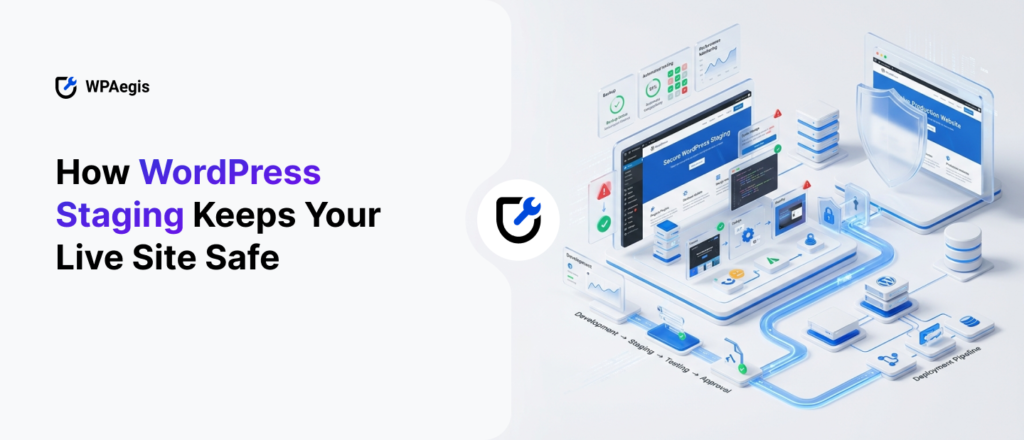
If you have a staging site, which is a private copy of your live site, run the update there first. Then click through your key pages: the homepage, a few recent posts, your contact form, your menu, and anything that handles payments or sign-ups. Staging is the safest way to catch problems before your visitors do.
If you don’t have a staging site, just be extra careful with the checks afterward, and keep your backup close.
Step three: check your plugins and themes
Look for updates to your plugins and themes before or right after updating WordPress. Many developers release compatibility fixes quickly after a major or security update.
Pay attention to the “tested up to” version listed on plugin pages. It’s a useful signal, but it’s the developer’s statement rather than a guarantee. If a plugin you rely on hasn’t been updated in a long time, it’s worth looking for an alternative or at least keeping a close eye on it.
Step four: review your users
Since several fixes involve logins, notes, and content editing, it’s a good time to review your user list. Remove accounts you no longer need, and check that contributors and authors have only the permissions they actually require. If you have people who left a project months ago and still have access, this is the moment to clean that up.
Step five: update and then verify
Run the update. Once it’s finished, clear any caching you use, whether that’s a plugin, your host’s cache, or a service in front of your site. Then check your important pages again. Look at your homepage, a couple of posts, forms, and anything that depends on plugins. Test in a private browser window too, since cached pages can make things look fine when they’re not.
Issues after an update
Sometimes an update causes a visible problem even when everything went according to plan. Knowing what to look for makes it much easier to respond calmly.
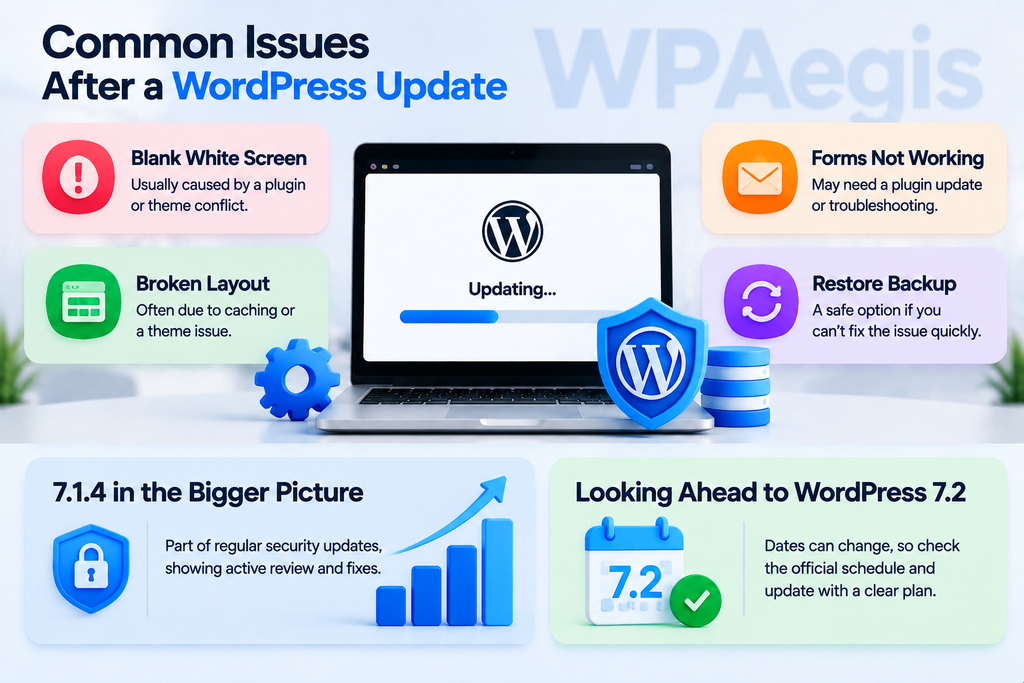
A blank white screen usually points to a plugin or theme conflict. The quickest fix is often to deactivate plugins one at a time until the site comes back, or to switch to a default theme temporarily to see whether the theme is the cause. You can do this through your dashboard if you can still log in, or through your hosting file manager or a tool like FTP if you can’t.
A layout that suddenly looks broken often comes from a caching layer serving an old version of the page, or from a theme that hasn’t caught up with the new release. Clearing caches and reloading in a private window solves a surprising number of these cases.
A form that stops sending messages is worth taking seriously, especially on a business site. Test it yourself immediately after the update, and check whether the form plugin has an update available.
If the problem continues, your host or the plugin’s support channel can usually help you trace it. If anything looks seriously wrong and you can’t fix it quickly, restoring your backup is a legitimate choice. It’s better to be back online in a known good state while you investigate than to leave a broken site up for hours.
Where 7.1.4 fits in the bigger picture
If you’ve been following WordPress releases over the past year, you may have noticed how often security updates have come out. That’s not unusual for a widely used open-source platform, and it’s a sign the security team is actively reviewing code and responding to reports. The people who reported the issues in 7.1.4 are credited in the release post, which is a good example of how the community works.
For site owners, keep updates on your regular schedule, not as an occasional emergency project. Turn on automatic background updates if your host and setup allow it, and make sure someone is responsible for checking the dashboard regularly.
Looking ahead, WordPress 7.2 planned dates can change, so keep an eye on the official schedule before you plan any work around it. When 7.2 arrives, treat it the same way: back up, test where you can, and update with a clear plan.
Final thoughts
WordPress 7.1.4 is one of those updates that’s easy to put off and important not to. The fixes address stored XSS problems across several blocks, the Interactivity API, privacy and login handling, and the upgrade process itself. Taking an hour this week to back up, check your plugins, and run the update can save you a lot of trouble later. If you want more simple and easy guides on WordPress updates, security basics, and keeping your site running smoothly, you’ll find them at our blog.
Frequently asked questions
Yes. It’s an official release from WordPress.org, and the project recommends updating right away because it contains security fixes. As with any update, a backup beforehand is a smart move.
Usually your site will update on its own, but it’s still worth checking. Go to your dashboard and confirm the version shows 7.1.4. Automatic updates sometimes pause or fail, and a quick check takes less than a minute.
That isn’t a good idea because security fixes in 7.1.4 are meant to protect you now. Waiting for the next major release means staying exposed in the meantime.
Start planning your move to the current supported line. Older versions may receive some backported security fixes, but they don’t get full support. Test carefully, since jumping several versions can surface plugin and theme issues.
Not usually. Most visitors won’t notice a core security update at all. If your update causes visible changes, a short note to your team or clients is enough.


Leave a Reply