


At some point, almost every WordPress owner ends up staring at their domain name and thinking, “now it needs to be changed.” Maybe you launched in a hurry and grabbed whatever .com was still free at 11 p.m. Maybe your business has outgrown the name you picked three years ago. A developer could have built your site on a placeholder URL, and nobody ever got around to fixing it before launch. Whatever brought you here, you’ve probably noticed something strange while researching this: half the articles make it sound like a two-minute settings change, and the other half read like you’re defusing a bomb.
The truth sits in between because changing a domain is one of those WordPress site management tasks that’s genuinely simple in theory and genuinely easy to botch in practice, because WordPress doesn’t store your web address in just one place. It’s tucked into your database, sometimes hardcoded into a config file, occasionally cached inside a plugin, and referenced all over your theme’s serialized settings. Miss one spot, and you can end up locked out of your own dashboard or staring at a homepage that insists on redirecting to a domain you don’t own anymore.
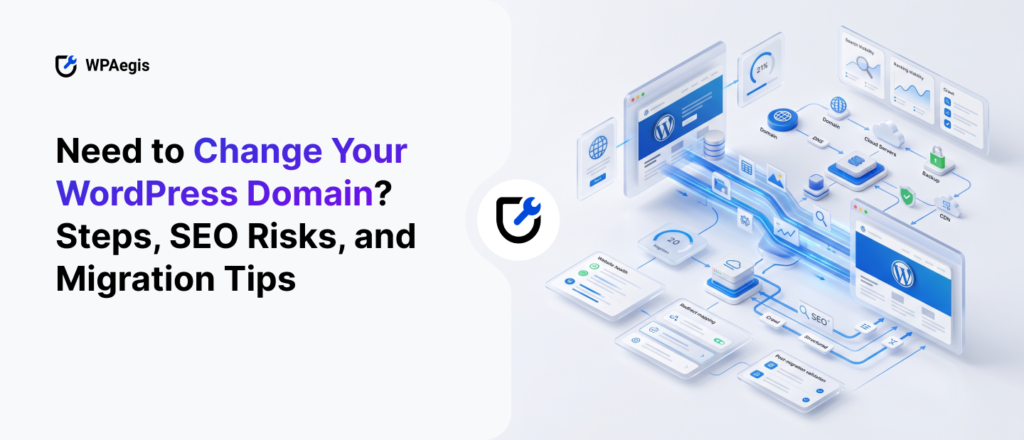
This guide covers the whole picture: why people change domains in the first place, every method for doing it, how a full domain migration differs from a quick settings tweak, and the checklist that keeps Google from treating your “new” site like it fell out of the sky. Stick around to the end, and we’ll also talk about the questions we hear over and over from site owners going through this and why a growing number of them hand the technical part to a team like ours at WPAegis instead of white-knuckling it themselves.
What “WordPress Site Management” Actually Covers
Search for “WordPress site management”, and you’ll mostly find roundups of dashboard tools like ManageWP, MainWP, Jetpack Manage, InfiniteWP, and a handful of others that let agencies push updates to fifty client sites at once. Those tools are genuinely useful if your job is running bulk plugin updates across a portfolio of sites. But that’s a narrow slice of what “managing” a WordPress site actually means day to day.
Real site management is the ongoing work of keeping a website secure, backed up, fast, and correctly configured, and configuration is where most of the stress lives. Updates are routine. Backups can run on autopilot. But a domain change touches your database, your DNS, your SSL certificate, your search engine indexing, and sometimes your email, all at the same time. It’s exactly the kind of one-off, high-stakes task that a bulk-update dashboard was never built to walk you through, which is a big part of why so many people end up Googling this at 1 a.m. with a broken site open in another tab.
We built WPAegis around that gap. Instead of handing you another dashboard and wishing you luck, our plans include actual humans who’ve done this migration a hundred times, backed by daily backups so nothing you touch is ever unrecoverable.
Why People Feel the Need to Change Their WordPress Domain
The most common reasons we see for changing a WordPress domain are:
- Rebranding. The business grew past its original name, or it was renamed for legal or marketing reasons.
- A placeholder that stuck around too long. Developers often build on a temporary domain and forget to swap it before launch.
- Trading up on the TLD. Someone started on a .net, .site, or .co because the .com was taken, and later managed to buy the .com.
- Shortening or simplifying. A long, hyphenated, hard-to-say domain gets replaced with something people can actually remember and type.
- Merging two sites into one. Two blogs or two business units consolidate under a single address.
- Moving off a subdomain. Sites that started life as agency.com/clientname or clientname.wordpress.com eventually move to their own root domain.
- A WordPress website change domain name request tied to acquisition. One company buys another and folds the acquired site’s content into their own domain.
None of these reasons make the technical process any different. Whether you’re changing a WordPress domain for branding reasons or because you’re merging two sites, the mechanics below are the same.
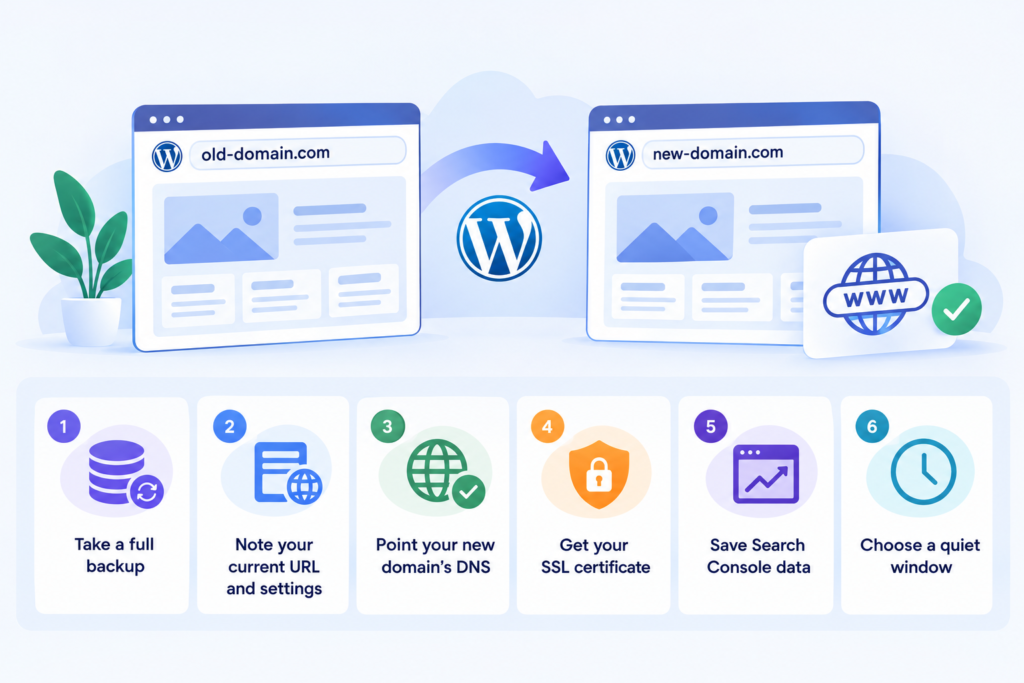
Before You Touch Anything: A Six-Point Pre-Flight Checklist
Skipping this part is how a fifteen-minute task turns into a weekend of panic. Before you go near Settings, wp-config.php, or your database, do these six things.
- Take a full backup: files and database, not just one or the other. If something goes wrong halfway through, this is what lets you undo the entire afternoon instead of starting from scratch. This is also, frankly, the number one reason we push daily automatic backups so hard in every WPAegis plan: the people who regret skipping a backup only ever find out afterward.
- Write down your current site URL and home values somewhere safe. A plain text file works fine. If you get confused mid-process, you’ll want the exact original values to compare against.
- Point your new domain’s DNS ahead of time and confirm it actually resolves to your hosting account before you start editing anything inside WordPress.
- Get your SSL certificate sorted for the new domain first. Flipping your site over to a domain without HTTPS ready is how you end up with browser security warnings on day one.
- Screenshot or export your current Search Console performance data. You’ll want a “before” snapshot to compare against once the dust settles.
- Pick a quiet window like early morning, a weekend, whenever your traffic is lowest in case there’s a short gap while everything catches up.
How to Change Domain in WordPress: Five Methods That Actually Work
Here’s the part everyone’s really searching for but here’s no single button for this because WordPress address settings live in more than one place, and which method you need depends entirely on whether you can still log into your dashboard.
Method 1: Settings → General (the easy way, if you can log in)
This is the standard way to change the website address WordPress uses when everything’s still working normally.
- Log in to your WordPress dashboard using the current (old) domain.
- Go to Settings → General, and you’ll see two fields: WordPress Address (URL) and Site Address (URL). For most standard installs, these are identical.
- Replace both with your new domain, including https:// if your SSL certificate is already active.
- Click Save Changes.
If the new domain isn’t pointed at your hosting yet, don’t use this method; you’ll lock yourself out with nowhere to log back in from, which brings us to Method 2.
Method 2: Change Site URL in WordPress via wp-config.php (best when you’re locked out)
This is the method people search for as “change site url wordpress wp config php,” and it’s genuinely the safest option if Method 1 already left you stuck, or if you know in advance that the dashboard won’t be reachable during the switch. Defining the domain directly in wp-config.php overrides whatever is stored in the database, so your admin area becomes reachable at the new address immediately, no chicken-and-egg problem.
- Connect to your server through FTP, SFTP, or your host’s File Manager.
- Open wp-config.php, found in your WordPress root folder (usually public_html).
- Just above the line that reads /* That’s all, stop editing! Happy publishing. */, add:
define( ‘WP_HOME’, ‘https://www.yournewdomain.com’ );
define( ‘WP_SITEURL’, ‘https://www.yournewdomain.com’ );
- Save the file and reload your site.
This is essentially how you’d approach wordpress set domain in wp-config as a recovery move. It doesn’t touch your database at all, so it’s low-risk and instantly reversible. Once things are stable, you can remove these lines and update Settings → General normally, or leave them in place; either works.
Method 3: Editing the wp_options Table Directly (phpMyAdmin)
If you can’t access wp-admin and can’t edit wp-config.php, you can update the domain at the database level.
- Open phpMyAdmin from your hosting control panel.
- Select your WordPress database, then open the wp_options table (the “wp_” prefix may differ if it was customized during install).
- Find the rows where option_name equals siteurl and home.
- Click Edit on each, replace the option_value with your new domain, and click Go.
If you need to replace the domain across every table, use a tool built to handle serialization correctly, which is exactly what the next two methods do.
Method 4: WP-CLI (for developers, or anyone comfortable with SSH)
If you have command-line access, this is the cleanest option because it handles serialized data safely.
wp option update siteurl ‘https://www.yournewdomain.com’
For home wp option update ‘https://www.yournewdomain.com’
search-replace wp search-replace ‘https://www.yourolddomain.com’ ‘https://www.yournewdomain.com’ –all-tables
The search-replace command is the important one; it walks through every table, finds every reference to the old domain (including inside serialized arrays), and swaps it out correctly, updating the length counts as it goes.
Method 5: A Migration or Search-Replace Plugin (best for non-technical users)
If FTP and phpMyAdmin sound like a foreign language, plugins do the same job through a normal WordPress interface. Better Search Replace handles domain swaps safely (serialization-aware, just like WP-CLI). Duplicator and All-in-One WP Migration package your entire site, files and database, into a single export you can restore anywhere, updating the domain automatically as part of that process.
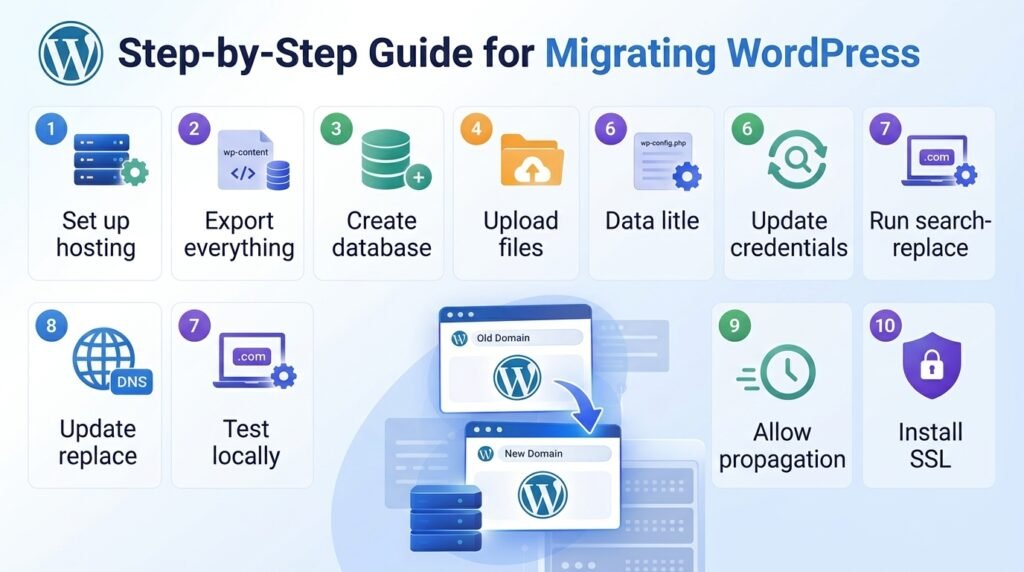
Step-by-Step Guide for Migrating WordPress:
Everything above assumes your site is staying on the same server and you’re only changing the address people type in. But a lot of the time, “how to migrate WordPress site to new domain” actually means something bigger: a new domain and a new host, at the same time.
- Set up your hosting account on the new server and confirm PHP version and database access are ready.
- Export everything from the old site: your full wp-content folder plus wp-config.php, and a complete SQL export of your database via phpMyAdmin or WP-CLI’s wp db export.
- Create a fresh database on the new host and import the SQL file.
- Upload your files to the new server via FTP or your host’s file manager.
- Update the database credentials in wp-config.php on the new server: the new DB name, username, password, and host address.
- Run a search-replace (WP-CLI or Better Search Replace) to swap every instance of the old domain for the new one throughout the database.
- Test before you flip DNS. Edit your computer’s local hosts file to point the new domain at the new server’s IP address temporarily. This lets you browse the fully working new setup privately, on your own machine, before the rest of the world sees any change the single best way to answer “how to move a WordPress site to another domain” without a live outage while you’re troubleshooting.
- Once everything checks out, update your DNS records at your registrar to point the new domain at the new host.
- Give it time to propagate. DNS changes typically show up within a couple of hours but can technically take up to 24–48 hours to fully settle across every network.
- Install your SSL certificate on the new server if it isn’t already active.
That covers how to move a WordPress site to a new domain and new hosting in one pass- files, database, domain, and DNS- in an order that gives you a chance to catch problems before your visitors ever see them.
The Post-Migration Checklist That Actually Protects Your SEO
The domain change itself is 30% of the job. What you do in the days afterward determines whether your rankings dip for a week or vanish for months.
- Set up 301 redirects from every old URL to its matching new URL, not just the homepage. In your .htaccess file, it looks something like:
RewriteEngine On, then RewriteCond %{HTTP_HOST} ^(www\.)?yourolddomain\.com$ [NC]
RewriteRule ^(.*)$ https://www.yournewdomain.com/$1 [R=301,L]
- Use Google Search Console’s Change of Address tool. With both the old and new domains verified in Search Console, go to Settings → Change of Address and point Google toward the move. It won’t happen instantly, but it meaningfully speeds up how fast Google reassigns your history to the new address.
- Do the same in Bing Webmaster Tools if you get meaningful traffic from Bing.
- Resubmit your XML sitemap under the new domain.
- Update your Google Analytics property with the new domain so you’re not tracking a dead URL.
- Sweep for hardcoded internal links in navigation menus, widgets, and any custom HTML blocks; search-and-replace tools catch database content, but manually typed links in a text widget can slip through.
- Keep the old domain registered and pointing to your redirects for at least 12 months. Letting it lapse early cuts off the 301 redirect chain and throws away the link equity you were trying to preserve.
- Watch Search Console for 60–90 days. Some ranking movement immediately after a domain change is normal; new domains take time to earn back the trust search engines had assigned to the old one. A steady climb back toward your old numbers is the sign things are working; a flat line or continued decline after two months is the sign something in the redirect chain or indexing needs attention.
What Usually Goes Wrong (And the Fast Fix)
If you’ve made it this far, you already know more than most people who attempt this. Here’s what tends to trip people up anyway.
Redirect loop (“too many redirects”). Almost always an http/https mismatch: your redirect rule and your SSL settings are fighting each other. Check that your .htaccess redirect and your siteurl/home values both agree on http vs. https.
No padlock, or a “not secure” warning on the new domain. Your SSL certificate either hasn’t been issued yet or hasn’t fully propagated. Give it a few minutes after installation, then check again.
Can’t log into wp-admin after the switch. This is exactly what Method 2 (the wp-config.php override) is for; it’ll get you back in without touching the database.
Broken images or a stripped-down layout. Usually leftover hardcoded old-domain URLs inside a page builder’s saved data. Re-run your search-and-replace tool and make sure it covers serialized content, not just plain text.
Email suddenly stops working. People forget that MX records live at the DNS level too. If you moved hosts, your email routing needs to be re-pointed separately from your website’s A record.
Traffic and rankings dip for a few weeks. Expected, not a sign of failure; see the note on Search Console monitoring above.
That’s the exact gap WPAegis was built to close. Every plan starts with daily automatic backups, so nothing you or we touch is ever a one-way door. Security monitoring and uptime monitoring catch issues within minutes instead of you finding out from an angry customer email. Our Elite plan goes further and includes full site migration and SSL certificate installation handled entirely by our team, so the whole process outlined in this guide becomes something you request rather than something you execute.
Whether you need a full domain migration handled end to end, or you’d rather have daily backups and real monitoring in place before you attempt it yourself, that’s exactly what we do all day.
Request a Free Audit or Compare WPAegis Care Plans to see which level of support fits your site.
Related FAQ’s:
Some short-term movement is normal, and yes, a domain change is treated by search engines as a meaningfully different signal than a simple redesign. Backlinks pointing at your old domain don’t automatically transfer, and a brand-new domain hasn’t earned the same trust yet, even with a perfect set of 301 redirects in place. Done properly, permanent redirects on every URL, Search Console’s Change of Address tool used promptly, and the old domain kept alive, most sites recover to close to their previous rankings within one to three months.
Yes, technically the process is identical in reverse. Just know that every domain switch resets some trust with search engines, so bouncing back and forth is worse for your SEO than picking one domain and sticking with it.
Yes, for at least a year, ideally longer. It’s what keeps your 301 redirects alive, which is what preserves the SEO value you built up. Letting the registration lapse early is one of the most common and most avoidable mistakes people make after a migration.
For most non-developers, yes. A tool like Better Search Replace removes the risk of a typo breaking your site and correctly handles serialized data that a manual database edit can corrupt.


Leave a Reply