


If your WordPress site has been live for a year or two, there’s a decent chance your WordPress site needs database optimization to reduce unnecessary slowdown. WordPress database optimization doesn’t get much attention compared to flashy topics like page builders or AI plugins, but it’s one of the few performance fixes that actually pays off over time. Every plugin you’ve installed and removed, every post revision WordPress saved without asking, every spam comment your filter caught but never deleted.
It all lives in your database, and it all slows down the queries your site runs on every page load. This guide covers why the bloat happens, what to do about it, and which tools are genuinely worth your time this year.
Table of Contents:
- Boost your performance with WordPress Database optimization
- Why WordPress Database Optimization Matters for Site Performance
- Why WordPress Databases Get Bloated in the First Place
- Signs Your Database Actually Needs Attention
- Database Optimization Techniques That Help You to Solve This Issue
- 5.1 Clean Out Extra Things:
- 5.2 Optimize the Tables Themselves:
- 5.3 Watch Your Autoloaded Options:
- 5.4 Set Sensible Revision Limits:
- 2026’s Must-Have Plugins for Optimizing Your WordPress Database:
- WordPress Database Optimization Best Practices
- Database Optimization vs Overall WordPress Site Optimization
- Database Optimization Is Part of a Bigger Speed Picture
- How to Fix “Error Establishing a Database Connection”
- 10.1 How WPAegis Takes Database Cleanup Off Your Hands
- How to Secure a WordPress Database While You Clean It Up
- Frequently Asked Questions
Why WordPress Database Optimization Matters for Site Performance
Think of your WordPress database like the stockroom behind a busy shop. The customer sees the clean storefront, but every product, receipt, label, and box is stored somewhere behind the scenes. When the stockroom becomes packed with things nobody needs, finding the items that actually matter becomes harder.
WordPress works similarly; every page request can involve:
- Database reads.
- Writes
- Queries
- Options
- Metadata
- Other necessary operations
So, unnecessary data can become part of the performance equation.
A WooCommerce store with thousands of legitimate products and orders may naturally have a much larger database than a small company website. WordPress’s own optimization guidance treats performance as a combination of application, database, hosting, caching, and other factors rather than a single cleanup operation.
And here’s why that distinction is important people often treat database cleanup like a magic turbo button. It isn’t. If your biggest bottleneck is an overloaded server, an inefficient plugin, an external API, poorly written queries, or unoptimized images, deleting a few revisions will not suddenly transform the site. But if years of accumulated data are creating unnecessary work, database optimization WordPress tasks can remove a genuine source of friction.
Why WordPress Databases Get Bloated in the First Place
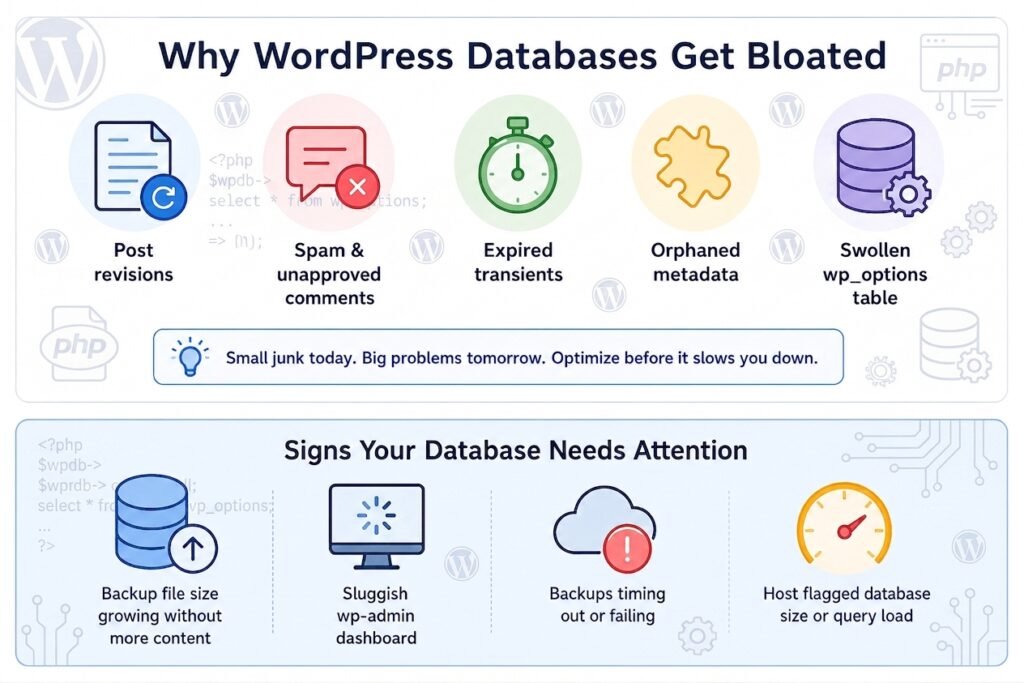
WordPress never came with a self-cleaning feature because it saves everything by default and leaves the cleanup entirely up to you. It saves data by default and assumes someone will decide later whether to keep it. Multiply that by a few years of daily use, and you end up with:
- Post revisions:
WordPress saves a new revision almost every time you hit “save” on a draft. A frequently edited page can rack up dozens of near-duplicate entries.
- Spam and unapproved comments:
Akismet catches them, but catching isn’t the same as deleting.
- Expired transients:
These are meant to be temporary cached values, but plugins don’t always clear them once they expire.
- Orphaned metadata:
Delete a plugin without deactivating it properly first, and its settings, custom fields, and log tables often stay behind anyway.
- A swollen wp_options table:
This is the quiet one. Every setting, every plugin configuration, every cached value marked “autoload” gets pulled into memory on every single page load, whether that page actually needs it or not.
None of this looks dramatic on its own, but it adds up, and it’s exactly the kind of unglamorous, behind-the-scenes optimization WordPress developers handle quietly instead of talking about. WordPress database optimization is really just the process of reversing that slow accumulation before it starts showing up in your load times.
Signs Your Database Actually Needs Attention
You don’t have to guess. A few reliable signs:
- Your database backup file has gotten noticeably larger without a matching increase in actual content
- The wp-admin dashboard feels slower than the public-facing site
- Backups are timing out or failing outright
- Your host has flagged database size or query load as an issue
Database Optimization Techniques That Help You to Solve This Issue
Clean Out Extra Things:
Clean up extra and old files you don’t need, like old auto-drafts, spam comments, and expired transients, etc. On a site that’s been running for several years without any maintenance, this step alone can shrink the database by a noticeable margin.
Optimize the Tables Themselves:
Deleting data leaves gaps in your database tables, a bit like deleting files from a hard drive without ever defragmenting it. Running an OPTIMIZE TABLE command (or using a plugin that does this for you) reclaims that wasted space and rebuilds indexes so queries run faster. If you’re comfortable with WP-CLI, wp db optimize handles this in one line.
Watch Your Autoloaded Options:
This is the one most people miss. Check the total size of autoloaded data in your wp_options table, and if it’s crept past a few hundred KB, it often means that data gets loaded into memory on every page request, needed or not. Page builders in particular are notorious for storing large chunks of JSON as autoloaded options that nobody remembers turning on.
Set Sensible Revision Limits:
Add this line to your wp-config.php file to stop revisions from piling up indefinitely:
define(‘WP_POST_REVISIONS’, 5);
That keeps the five most recent revisions per post instead of letting them accumulate forever.
2026’s Must-Have Plugins for Optimizing Your WordPress Database:
You don’t have to do all of this by hand, and honestly, most site owners shouldn’t; one wrong query in phpMyAdmin, and you can take your own site down. What sets a great WordPress database plugin apart? A good plugin doesn’t just wipe things out without asking, it actually shows you a preview of exactly what it’s about to remove, so you can review everything before you commit to the cleanup.
| Plugin | Best For | Price | What Makes It Stand Out |
| WP-Optimize | Beginners who also want caching and image compression in one place | Free, with a paid upgrade | Cleans, caches, and compresses from a single dashboard; a solid generalist, though dedicated caching plugins usually outperform its caching module alone |
| Advanced Database Cleaner | Site owners who want granular control over what gets deleted | Free, with a Pro version | Filters by table, size, and autoload status, plus scheduled automatic cleanups |
| WP-Sweep | Developers who prefer a lightweight, no-frills tool | Free | Sweeps orphaned data cleanly without touching front-end performance settings |
| WP Multitool | Developers debugging slow queries, not just tidying up | Paid | Bundles a slow-query analyzer and autoload optimizer alongside the standard cleanup tools |
| Query Monitor | Diagnosing why your database is slow, not fixing it directly | Free | Shows exactly which plugin or theme is firing excessive or slow queries, worth installing before you optimize anything else |
A quick note on that last row: Query Monitor isn’t technically a database optimization plugin; it doesn’t delete anything. But if you’re trying to work out what’s actually causing the slowdown before you start cleaning, it’s arguably more useful than any cleanup tool on this list. Install it first, find the real problem, then reach for whichever plugin actually fixes it.
If you’re after the single best WordPress database optimization plugin for a typical small-to-medium site, WP-Optimize or Advanced Database Cleaner will cover almost everyone.
How a Bloated Database Affects Your SEO Rankings and Core Web Vitals
Most site owners don’t realize the connection, but a sluggish database and poor Google rankings often go hand in hand.
- TTFB (Time to First Byte) is the silent killer:
It’s the delay between your browser requesting a page and the server starting to respond. Until that first byte arrives, your screen stays completely blank.
- Your database is right in the middle of every request:
When your wp_options table is stuffed with autoloaded junk, queries aren’t indexed properly, and old post revisions pile up, all of that adds precious milliseconds before your page even begins to load.
- TTFB isn’t just a technical number:
It directly impacts Largest Contentful Paint (LCP), one of Google’s three Core Web Vitals. A sluggish server response can single-handedly tank your LCP score—even if your images are compressed to perfection.
- Crawl budget matters more than most people think:
Googlebot doesn’t have endless patience. When your database buckles under pressure and each page takes an extra second or two to generate, Google simply crawls fewer pages within that same time window.
- A database cleanup isn’t a magic wand:
It won’t fix thin content or a lack of backlinks. But if your Core Web Vitals keep flagging server response time and you’ve already optimized hosting and caching, the database is the next logical place to look.
WordPress Database Optimization Best Practices
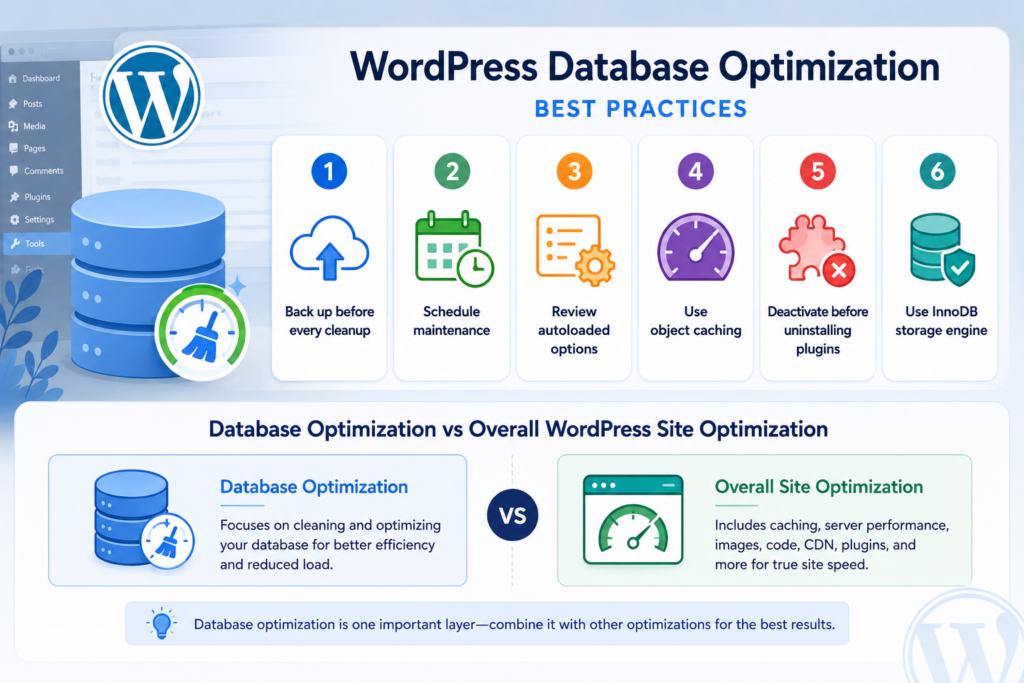
A clean database doesn’t stay clean on its own. A few habits worth building in:
- Back up before every cleanup:
Every time, no exceptions. Even a routine cleanup can occasionally remove data a poorly coded plugin still quietly depends on.
- Schedule maintenance instead of waiting for problems:
Monthly is reasonable for most sites; weekly if you run WooCommerce or a membership site with heavy daily activity.
- Review autoloaded options every few months:
Plugins change, and so does what they store.
- Use object caching:
Redis or Memcached can cut repeated database queries dramatically, which matters more than raw table size once a site has real traffic.
- Don’t uninstall a plugin without deactivating it properly first:
And honestly, this is exactly where most of that junk data sneaks in to begin with, so before uninstalling any plugin, make sure to deactivate it properly.
- Keep your table storage engine on InnoDB:
Keep your table on InnoDB, not the older MyISAM. Most modern WordPress installs default to this already, but it’s worth checking on older sites.
These are the WordPress database optimization best practices that actually hold up over time, rather than the one-time fixes that feel satisfying but don’t stop the same bloat from creeping back in six months later.
Database Optimization vs Overall WordPress Site Optimization
Here is where many website owners get database optimization wrong. They run a cleaner, see that the database is smaller, and assume the website must now be fast.
Maybe it is. Maybe it is not.
WordPress website speed optimization includes many other factors: page caching, object caching, PHP performance, hosting resources, image delivery, JavaScript execution, CSS, third-party scripts, CDN configuration, database queries, and plugin behavior. WordPress’s own performance guidance takes this broader view of optimization. Community discussions also show how different performance problems can overlap.
WordPress users frequently point to page builders, plugins, hosting, images, caching, and database tuning as separate parts of the performance equation rather than one universal fix. That means database optimization should be treated as one layer of your performance strategy.
Imagine a car with dirty fuel injectors but flat tires. Cleaning the injectors may help, but you are not going to get the best performance until you address the other problem too. WordPress works much the same way.
If database cleanup produces little improvement, investigate server response time, slow queries, plugin execution, object caching, page caching, theme code, and frontend assets before assuming the database is still the culprit.
Database Optimization Is Part of a Bigger Speed Picture
Worth being honest about: database optimization alone won’t turn a slow site into a fast one. It’s the foundation, not the whole house.
That’s what most WordPress optimization speed advice circles back to: clean the database first, then layer caching and everything else on top.
Real WordPress website speed optimization also depends on:
- A caching plugin sitting on top of your now-cleaner database
- Decent hosting that isn’t oversubscribing shared server resources
- Properly compressed, correctly sized images
- A reasonable plugin count, since each one adds its own queries
Think of it as a cluttered kitchen with no dishwasher. Fixing one problem helps. Fixing both is where you actually notice the difference. If your broader goal is WordPress site optimization rather than just a database cleanup, treat this guide as step one, not the whole project.
How to Fix “Error Establishing a Database Connection”
If you’ve searched for WordPress error establishing a database connection while staring at a blank white screen, you already know how unsettling it is; your entire site just disappears. The good news is that it’s almost always fixable in under twenty minutes, and it’s rarely as serious as it looks.
Common causes, roughly in order of likelihood:
- Wrong database credentials in wp-config.php, often after a migration or a hosting change
- An overloaded or temporarily down database server, especially common on shared hosting during traffic spikes
- A corrupted database table, sometimes caused by an interrupted plugin update
- Corrupted core files, occasionally from a bad update or, less often, a compromised site
To fix it:
- Open wp-config.php and carefully check that your database-related information like name, user password, etc., matches what your hosting dashboard shows. A password reset done on the hosting side without updating this file is a very common cause.
- Check with your host whether the database server itself is up. A quick support chat usually confirms this within minutes.
- Try a database repair by temporarily adding define(‘WP_ALLOW_REPAIR’, true); to wp-config.php, then visiting yoursite.com/wp admin/maint/repair.php, and remove that line when your process is completed; leaving it creates security issues.
- If none of that works, restore from your most recent backup instead of guessing further.
This is also why the error establishing a database connection WordPress problem tends to hit unmaintained sites harder. A database that’s already strained by years of bloat has less room to absorb a traffic spike or a rough plugin update before something actually breaks.
How WPAegis Takes Database Cleanup Off Your Hands
Instead of someone manually tracking autoloaded options, scheduling table optimizations, and hoping a plugin’s preview screen catches everything before confirming, WPAegis builds database health into regular WordPress maintenance. Backups run daily, automatically, before anything gets touched, so if a cleanup goes wrong, it’s a quick restore instead of a bad afternoon. Speed and Core Web Vitals work happen as part of the plan instead of being bolted on later, and updates to core, themes, and plugins get reviewed by an actual person instead of firing off on autopilot.
How to Secure a WordPress Database While You Clean It Up
Optimization and security go together more than people realize; a lean, well-maintained database is also a harder target. Before and during any cleanup:
- Always back up first because it helps you when everything vanishes in seconds:
Worth repeating, because it’s the single most skipped step.
- Use a unique table prefix instead of the default wp_, ideally set at install time rather than changed later.
- Create a dedicated database user with limited privileges rather than reusing admin-level credentials across multiple sites.
- Restrict remote MySQL access unless you specifically need it, and lock it to known IP addresses if you do.
- Disable file editing from wp-admin by adding define(‘DISALLOW_FILE_EDIT’, true); to wp-config.php.
- Keep WordPress core, themes, and plugins updated. Most database corruption incidents trace back to an outdated, vulnerable plugin sitting somewhere in the stack.
Knowing how to secure a WordPress database isn’t really a separate project from optimizing it; the same discipline that keeps your database lean also keeps it harder to compromise.
Back up your site, install one plugin from the comparison above, run a first cleanup, and see what changes. Then build the habit of checking autoloaded options and table sizes every few months, before they turn into a real problem. A WordPress database optimization routine doesn’t need to be complicated. It just needs to actually happen on a schedule, instead of only when something finally breaks.
Frequently Asked Questions
For most people, WP-Optimize or Advanced Database Cleaner. Both show you exactly what will be deleted before you confirm anything, which matters more than any single feature when you’re new to this. Steer clear of anything that runs cleanup automatically with no confirmation step until you’ve watched it work safely a few times first.
It can, if you delete something a plugin still quietly relies on rare, but not impossible. That’s the entire reason backups exist. Back up first, use a plugin with a preview step rather than raw SQL commands unless you genuinely know what you’re doing, and you’ll be fine in the overwhelming majority of cases.
Usually it’s one specific plugin quietly logging more than it needs to, a security plugin tracking every file change, an SEO plugin storing redundant redirect history, or an old ecommerce plugin’s scheduled-action table that never got cleared out. Query Monitor, or just a quick look at your table sizes in phpMyAdmin, will usually point straight at the culprit within a few minutes.
Not without checking first. Plenty of legitimate, currently active plugins create tables with unfamiliar names. Search the table name alongside your installed plugin list before removing anything manually; this is exactly the kind of mistake a proper cleanup plugin is built to prevent, since it only touches data it actually knows how to identify safely.



Leave a Reply