


WordPress has always been known for making website creation accessible and secure for everyone by releasing the latest versions that solve various problems faced by clients. WordPress has just added something new, surprising, and really problem-solving, announced on August 13, 2026, that many developers and site owners may not have expected: an official WordPress Browser Extension.
Table of Contents:
- WordPress Just Launched Its First Official Browser Extension: Here’s What It Actually Does
- Why WordPress Built a Browser Extension
- The Admin Bar Problem Nobody Quite Solved
- Where the Extension Actually Came From
- What the Extension Actually Does
- 5.1 Hiding the admin bar without losing the shortcuts:
- 5.2 A toolbar icon that tells you where you stand:
- 5.3 Jumping straight to the right editor:
- 5.4 A launcher that remembers your sites:
- 5.5 Host detection:
- 5.6 A small developer toolkit:
- 5.7 A one-click sign out and a site information panel:
- Benefits of the WordPress Browser Extension
- 6.1 Faster Daily Website Management
- 6.2 Better Experience for Developers
- 6.3 Useful for Agencies Managing Client Websites
- Easier WordPress Experience for Beginners
- 7.1 What It Doesn’t Do: Send Your Data Anywhere
- WordPress Browser Extension vs Traditional WordPress Workflow
- 8.1 Should You Actually Install This?
- The Bigger Picture
For many years, if you wanted to check how your site looked to a visitor who wasn’t logged in, you had one real option: log out or open an incognito window, but now WordPress solves this issue. On August 13, 2026, the WordPress project quietly shipped its first-ever official browser extension, and it solves many problems that anyone who’s managed a WordPress site has run into without necessarily being able to name it.
Why WordPress Built a Browser Extension
At first glance, a browser extension might sound like a small convenience feature rather than major WordPress news.
The reason behind why the extension is made? It’s surprisingly practical. The extension brings several WordPress-aware tools directly into the browser, including shortcuts to the dashboard and editor, site recognition, block-boundary overlays, a phone-sized preview window, cache-busting reloads, and controls for clearing cookies and local storage.
WordPress user is logged in, the familiar admin bar appears across the top of the front end. That bar provides useful access to the dashboard, editor, profile, and other administrative shortcuts, but it also consumes part of the visible viewport.
There is another tradeoff. WordPress users can disable the admin bar through their profile settings, but doing that removes the shortcuts along with the bar. The new extension tackles the problem from another direction: hide the bar while keeping the useful controls nearby. The extension can hide the admin bar on selected sites or by default, while its browser-toolbar interface retains important shortcuts. Users can also restore the full admin bar with two clicks instead of navigating back through dashboard settings.
The Admin Bar Problem Nobody Quite Solved
For developers, the admin bar can be particularly annoying during visual testing. Imagine spending twenty minutes investigating why a sticky header appears to overlap content, only to discover that the WordPress toolbar shifted the page’s available viewport. The extension offers a simple way around that problem because the administrative controls no longer need to occupy the top of the page while the user is testing the front end.
This does not change the website’s actual CSS, JavaScript, theme structure, or layout. Instead, it changes the working environment used by the person reviewing the site. That distinction makes the extension useful as a testing convenience rather than a debugging replacement. The workaround has always been to switch the admin bar off in your profile settings.
That fixes the visual problem and creates a new one: now you’ve lost the shortcuts too, and getting back into the dashboard means typing out a URL or digging through bookmarks. Add in the fact that plugins love bolting extra icons and menus onto the admin bar, and it can get genuinely cluttered on an actively maintained site. You were always choosing between a messy bar and no bar at all. Nobody had built a proper middle option, until now.
Where the Extension Actually Came From
This one has a nice origin story, and it’s worth knowing because it explains why the extension feels more considered than a typical v1.0 release. It started as a personal side project called WP Detective, built by Jake Goldman, a partner at digital agency Fueled and the founder of 10up. It sat in his own GitHub account as exactly the kind of tool a developer builds to scratch their own itch.
Earlier this year, WordPress co-founder Matt Mullenweg came across it during Automattic’s internal “speed month” and pushed Goldman to turn it into something official rather than a personal project gathering stars on GitHub. From there, it picked up real contributors: Fabian Kägy, a WordPress core contributor and Goldman’s colleague at Fueled, helped shape the extension’s architecture early on, and developer Khokan Sardar contributed a run of patches. A handful of other Fueled engineers put it through testing before launch. It’s a rare case of a scratch-your-own-itch tool graduating into official WordPress tooling with a real team behind it, rather than being built top-down by a committee.
What the Extension Actually Does
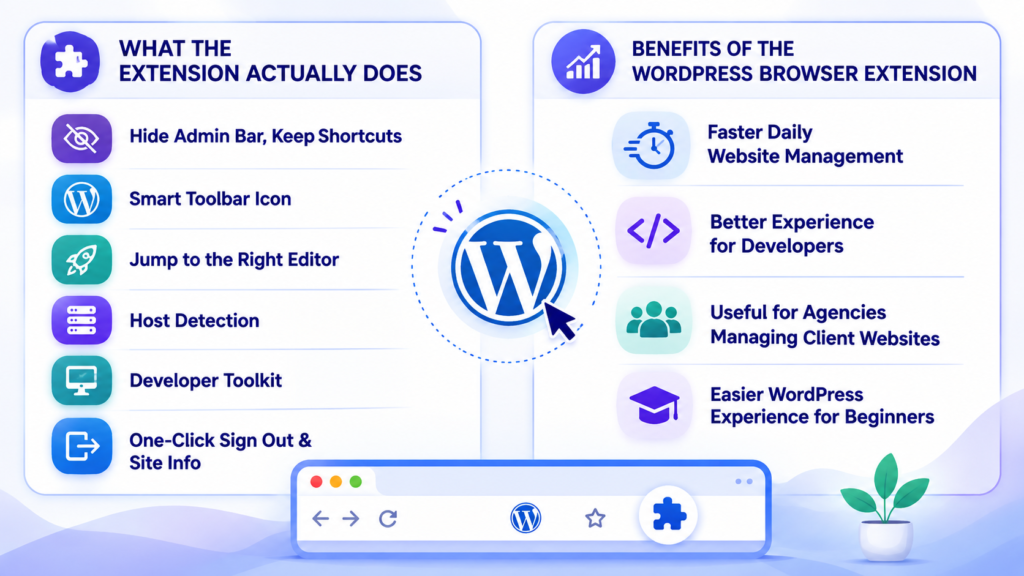
Hiding the admin bar without losing the shortcuts:
You can hide the bar site by site, or set it to stay hidden everywhere by default. The shortcuts you’d lose- dashboard access, edit links, your profile- move into the toolbar icon instead. Bringing the full bar back takes two clicks, no trip through wp-admin required.
A toolbar icon that tells you where you stand:
As you browse, the extension’s icon changes depending on what it detects: it stays visually quiet on sites that aren’t running WordPress, and shifts appearance once it recognizes a WordPress install, then again once it knows you’re signed in. You get that information at a glance without any popup or notification interrupting you.
Jumping straight to the right editor:
This is the part that’s genuinely useful for anyone who edits content regularly. Open the extension on a page you manage, and it links directly to the editor for that exact post, page, category, tag, author archive, or custom post type you’re looking at, including template-backed pages that open in the Site Editor on block themes. There’s also a keyboard shortcut (Alt+Shift+E, or Option+Shift+E on a Mac) that jumps you into editing mode without touching the mouse at all, and it’s customizable if you’d rather remap it.
A launcher that remembers your sites:
The extension keeps a locally stored list of every WordPress site you’ve signed into, so you can jump into any of them from wherever you happen to be browsing, not just when you’re already on that domain.
Host detection:
For agencies and freelancers juggling client sites, this one saves real time. The extension can identify which managed host a site is running on, including WP Engine, WordPress VIP, Pantheon, Kinsta, Flywheel, Cloudways, WordPress.com, and Pressable, and it caches that per site for ninety days so it’s not re-checking constantly.
A small developer toolkit:
A few features only make sense living in the browser rather than inside a plugin, and this is where the extension earns its keep for developers specifically. It can draw visible outlines around every block on a rendered page, complete with a breadcrumb tooltip naming each one, which is a genuinely fast way to understand how a block theme is structured without opening the inspector.
A one-click sign out and a site information panel:
Logging out skips WordPress’s usual “are you sure?” confirmation page, and for admins, a Site Information panel surfaces the active theme along with a list of installed plugins and their versions, pulled through the site’s own REST API.
Benefits of the WordPress Browser Extension
Faster Daily Website Management
Time is one of the most valuable resources for website owners.
When small tasks become easier, users can focus more on important activities like:
- Creating better content
- Improving SEO
- Growing traffic
- Managing customers
- Developing new projects
Better Experience for Developers
Developers often manage several WordPress websites simultaneously.
A typical day may involve:
- Checking client websites
- Updating content
- Troubleshooting issues
- Reviewing WordPress settings
A browser extension can help reduce unnecessary switching between tools.
Useful for Agencies Managing Client Websites
Digital agencies frequently manage many websites. Efficiency matters because even small improvements can multiply across dozens of projects. A smoother WordPress workflow can help teams:
- Work faster
- Reduce repetitive tasks
- Improve productivity
- Spend more time on strategy
Easier WordPress Experience for Beginners
Not everyone using WordPress is a developer. Many small business owners manage their own websites without technical backgrounds. Simplifying access to WordPress tools can make the platform less intimidating for beginners.
What It Doesn’t Do: Send Your Data Anywhere
For a tool that reads information about every WordPress site you visit, the privacy design is worth calling out specifically, especially if you’re the one who has to answer client questions about third-party browser tools touching a live site. There’s no telemetry and no analytics built in.
The extension works entirely locally: it reads the page you’re on to figure out what it’s looking at, and if you’re signed in as an admin and it needs more detail, it calls that site’s own REST API, the same one already built into WordPress. Your list of sites and your preferences stay stored in your browser.
That gives it a meaningfully different posture from a lot of browser extensions built around WordPress workflows, plenty of which route data through their own servers for ‘sync’ features you never asked for.
WordPress Browser Extension vs Traditional WordPress Workflow
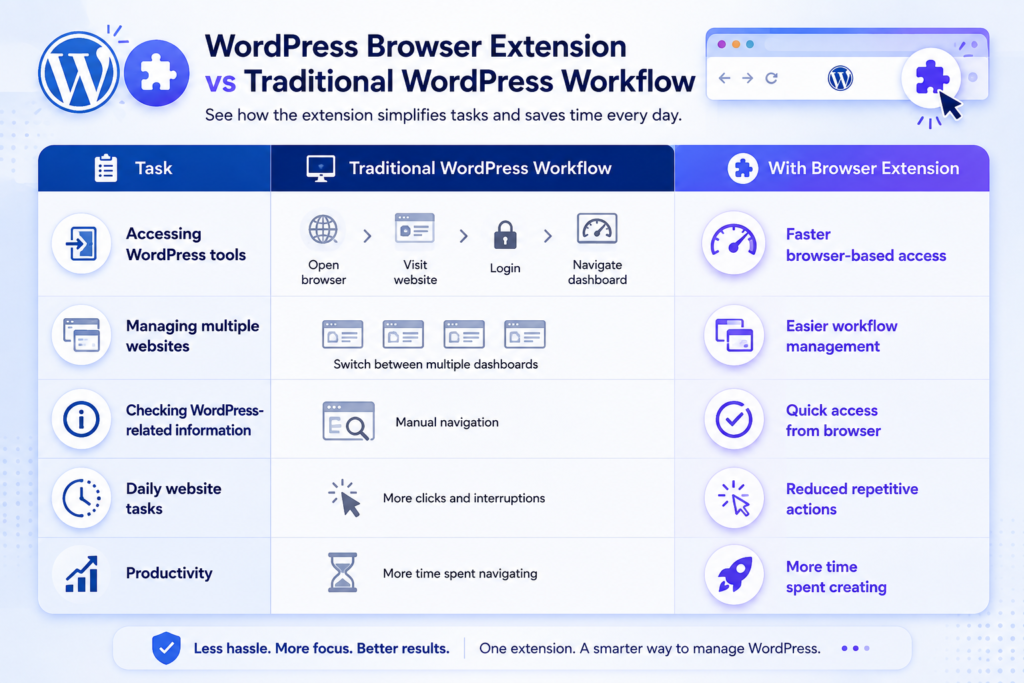
The following table shows how the new extension improves the traditional website management process.
| Task | Traditional WordPress Workflow | With Browser Extension |
| Accessing WordPress tools | Open browser → visit website → login → navigate dashboard | Faster browser-based access |
| Managing multiple websites | Switch between multiple dashboards | Easier workflow management |
| Checking WordPress-related information | Manual navigation | Quick access from browser |
| Daily website tasks | More clicks and interruptions | Reduced repetitive actions |
| Productivity | More time spent navigating | More time spent creating |
If your site runs on WordPress and you’ve been following our coverage of WordPress 7.1’s release candidate, it’s worth noting these are separate efforts moving on their own tracks. The extension does not tie itself to any particular WordPress Core version and works with sites already running current releases.
Should You Actually Install This?
If you edit content regularly, manage more than one WordPress site, or do any front-end QA work where the admin bar gets in the way, yes, it’s worth the two minutes it takes to install. It’s free, it’s open source, it doesn’t touch your site’s files or database, and removing it later is as simple as removing any other extension.
If you’re a site owner who logs in once a month to publish a blog post, you probably won’t notice much difference either way, and that’s fine. This was never built to be essential. It’s built to remove friction for the people who are in WordPress every day, developers, editors, and agencies managing a roster of client sites, and for that audience it closes a gap that’s existed since the admin bar was introduced.
The Bigger Picture
What’s actually interesting here isn’t the extension itself; it’s what it signals. WordPress has spent the last few releases pulling functionality that used to require a premium plugin directly into Core or, in this case, into official tooling that sits outside Core entirely. It’s part of a pattern of the project taking ownership of small daily frictions instead of leaving them for the plugin ecosystem to solve inconsistently, one developer’s side project at a time.
That said, a browser extension is still one more piece of software with access to how your site behaves when you’re logged in, and knowing what’s safe to add to your stack, and what’s worth skipping, is exactly the kind of judgment call that’s easy to get wrong when you’re managing a site on top of everything else running your business. That’s the sort of thing our WordPress maintenance and support services are built around: experts actually watching what changes in the WordPress ecosystem, so you’re not the one who has to keep track of every new release, every tool, and every “should I install this” decision on your own.

Leave a Reply